FTP, create an FTP user - Plesk
- cPanel
- Plesk
To create a new FTP user in Plesk: Different versions of Plesk may have slightly different appearances, but the steps, buttons, and icons are the same.
- Log in to Plesk.
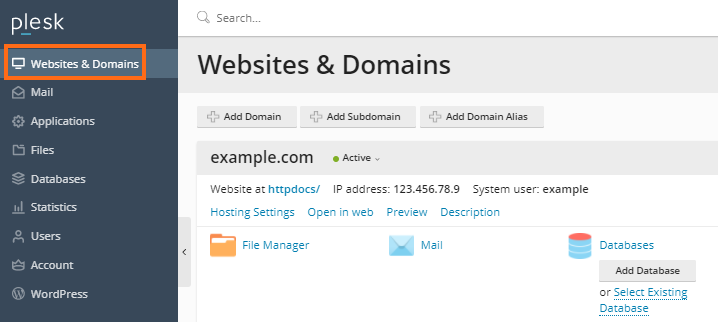
- Click on Websites & Domains.
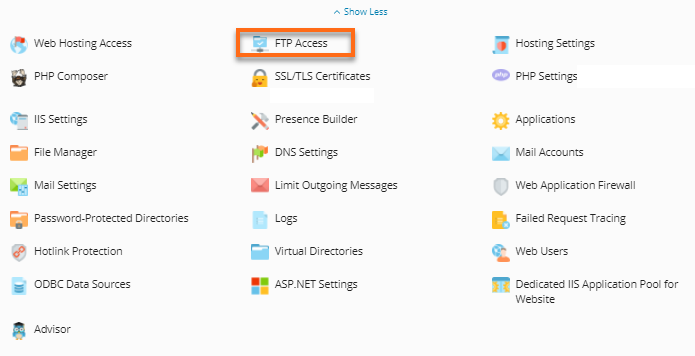
- Under the Dashboard tab, click on FTP.
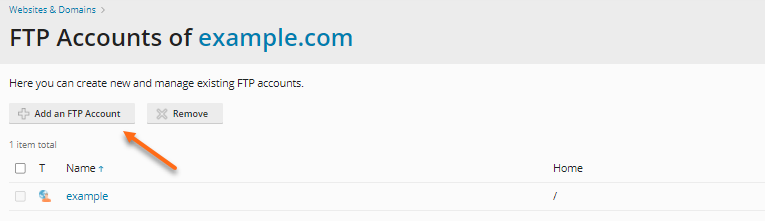
- Click on Add an FTP Account.
- Fill out all the necessary information.
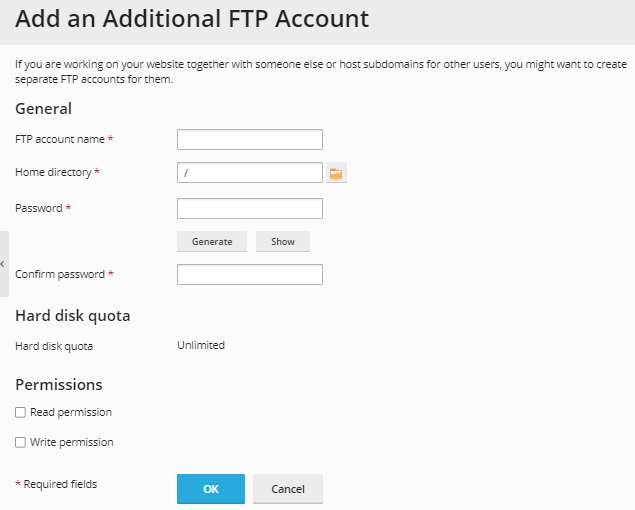
- FTP account name : What do you want the login to be? (Required field)
- Home Directory : This will be the highest directory they will have access to. By default, they have access to/for the Subscription. Do note they will have access to everything below this point. (Required Field)
- Password and Confirm password : Type in what the FTP password should be for this user. (Required Fields)
- Hard disk quota : The amount of disk space on the server that the FTP user can occupy.
- Read permission : To allow the FTP user to view the contents of the home directory and download files from it, select the Read permission checkbox.
- Write permission : To allow the FTP user to create, view, rename, and delete directories in the home directory, select the Write permission checkbox.
- Click on the OK button, and the new FTP user will be created.
Note: You must use the IP address to connect via FTP. To locate the IP Address, go to Web Hosting Access under Websites & Domains.