Email Setup for Thunderbird 91
Important:
- Make sure you've added the email account in your cPanel.
- Before setting up your email in Thunderbird, make sure that your email address has been added to cPanel. Check this article: How Do I Create Email Accounts in cPanel?
- Thunderbird 91 can be downloaded from thunderbird.net and set up as an upgrade from Thunderbird version 78 or earlier.
How to Setup Your Email in Thunderbird 91
For the first-time setup, proceed to step 2. To set up an email on Thunderbird:
- Launch Thunderbird then, go to Tools , and select Account Settings , then Add Account.
- On the Set Up Your Existing Email Address page, do the following:
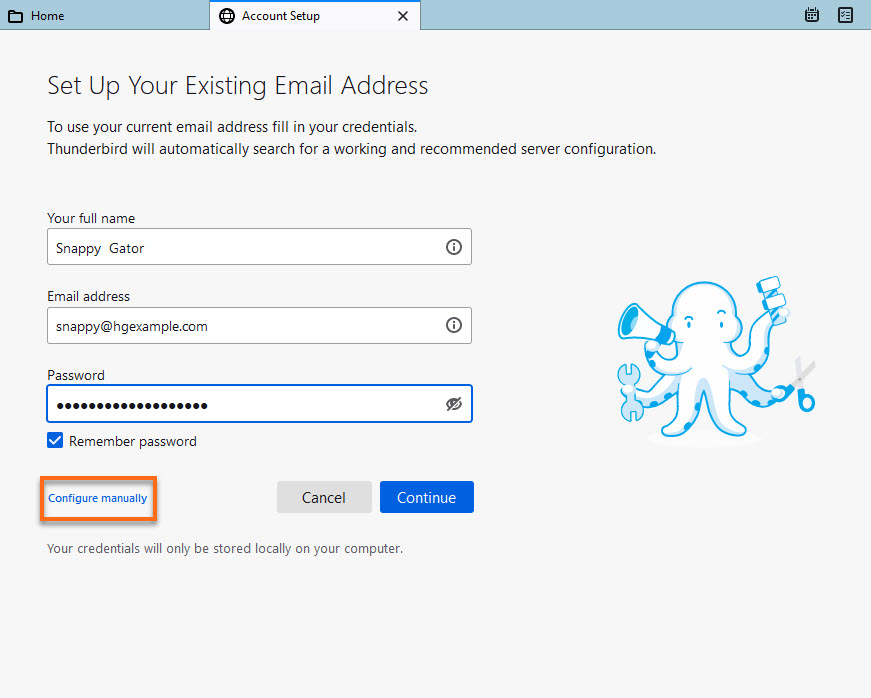
- Type your Full Name (this will be your display name on every email sent).
- Enter yourEmail address and its Password. You have the option to check the box to remember your password.
- Select theConfigure Manually link.
- Fill out the incoming and outgoing server information. You can check this article to get your server information: What is My Server Address?
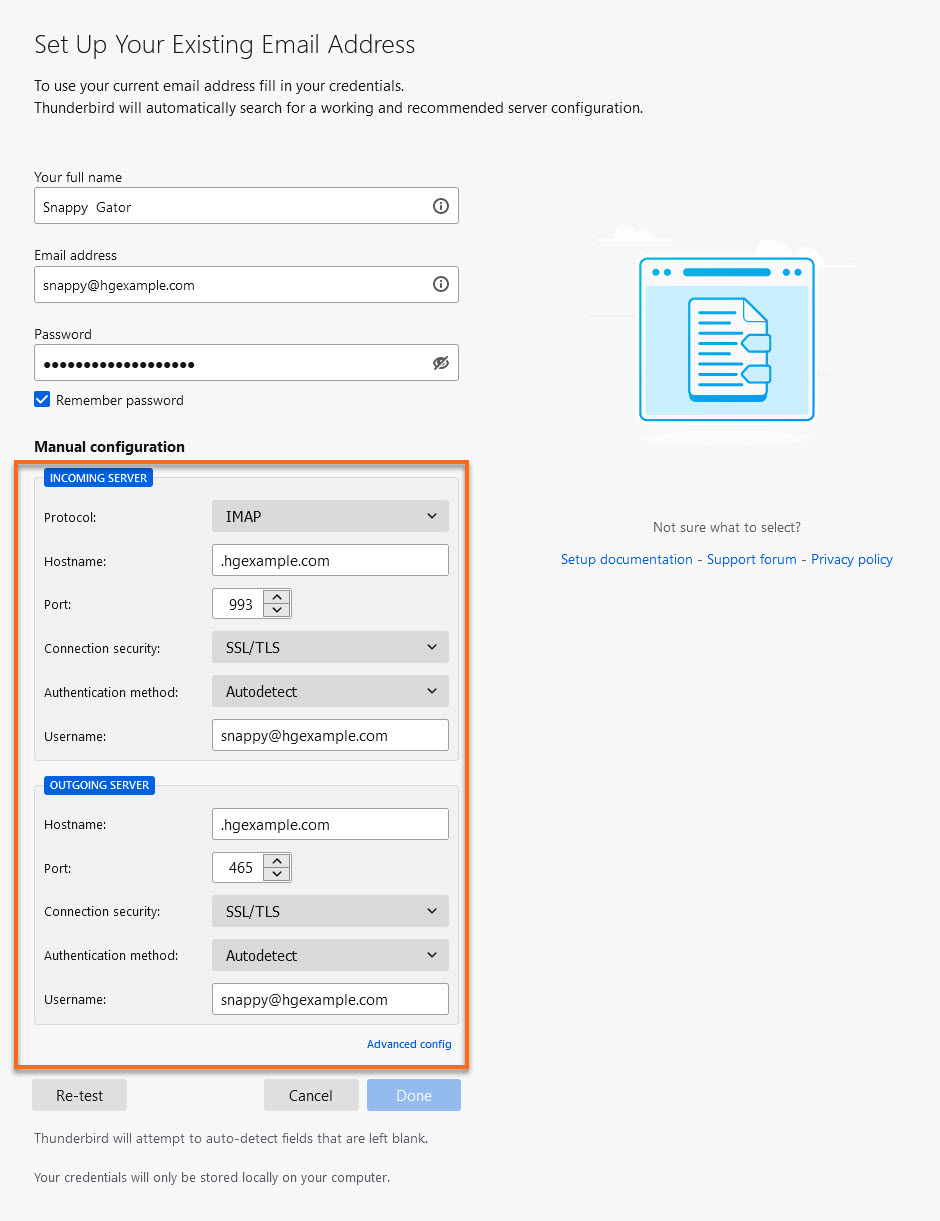
- In theIncoming Server , select POP or IMAP.
- Enter your incoming port.
- Select connection type. SSL/TLS is recommended.
- The username is your email address.
- In the Outgoing server , make sure to select No Authentication Method from the dropdown.
- Enter your outgoing port.
- Click Done.
You can also check Mozzila Thuderbird's documentation: Set Up an Email.