How to Check the SSL Information of Websites
An SSL certificate provides an extra layer of security between a website and a browser. It both serves to authenticate the website’s identity and to encrypt any information provided through the website. If you want to view an SSL certificate's information, such as the SSL issuer/provider, there is no need for an SSL checker tool, as you can simply view a website's SSL certificate via your browser's address bar. This article discusses how to view a website's SSL certificate depending on what browser you're using.
- Mozilla Firefox ⤵
- Google Chrome ⤵
- Microsoft Edge ⤵
- Internet Explorer ⤵
Please check out the Related Articles section below if you're looking for more articles about SSL.
Mozilla Firefox
To view the website’s SSL information in the Mozilla Firefox browser:
- Go to an SSL-enabled website.
- Click on the padlock icon next to website's URL in the address bar.
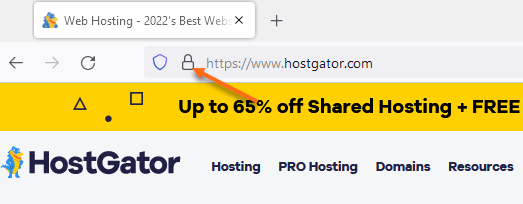
- In the pop-up window, click on Connection secure.
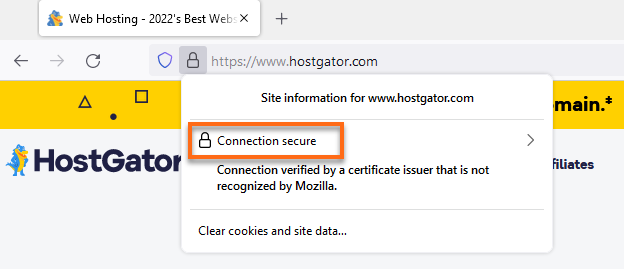
- Select More Information in the next pop-up window.
- Under the Security tab, click on the View Certificate button.
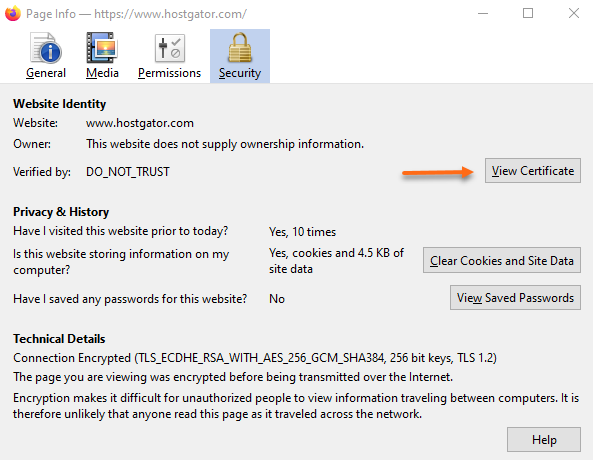
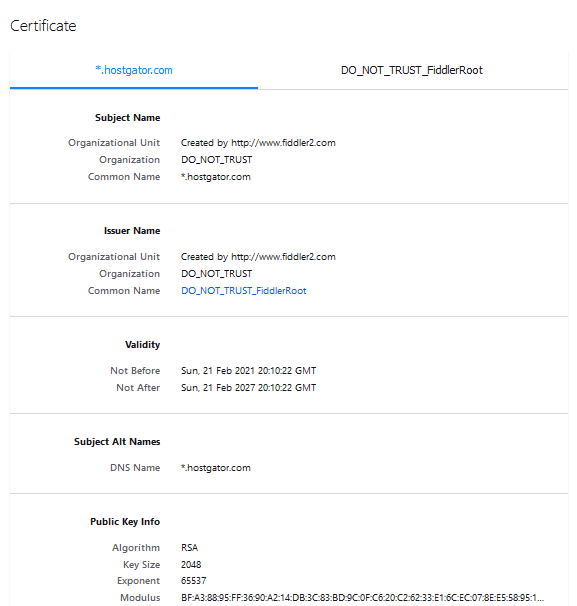
- The Certificate will appear in a new tab, displaying the SSL information, such as:
- Issued To/Common Name/Organization Unit - This is the domain where the SSL was issued.
- Issued Name - This is your SSL Issuer.
- Validity - This shows your SSL certificate’s issuance and expiration dates.
- Fingerprints/Serial Number - This is your SSL certificate’s unique ID.
Google Chrome
Chrome shows a dark gray lock icon on the left side of the URL for all SSL Certificates. To view the SSL Information:
- Go to an SSL-enabled website.
- Click on the padlock icon next to website's URL in the address bar.
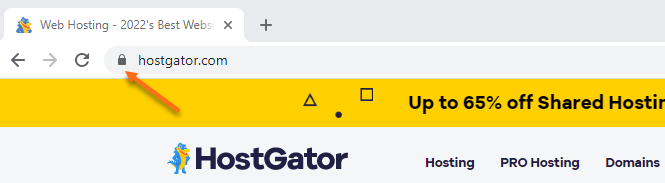
- In the pop-up window, click on Connection is secure.
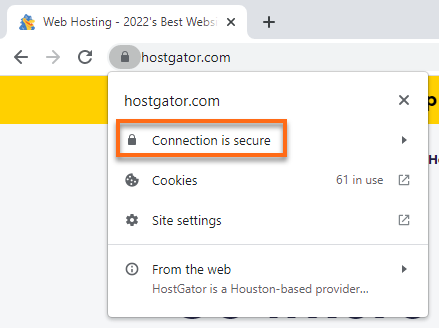
- Click Certificate is valid.
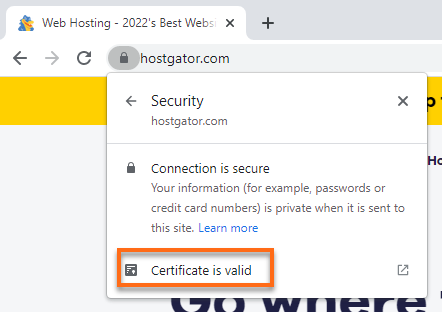
- The Certificate Viewer will appear on the pop-up window, displaying the following information:
- Issued To/Common Name - This is the domain where the SSL was issued.
- Issued By - This is your SSL Issuer.
- Validity Period - This shows your SSL certificate’s issuance and expiration dates.
- Fingerprints/Serial Number - This is your SSL certificate’s unique ID.
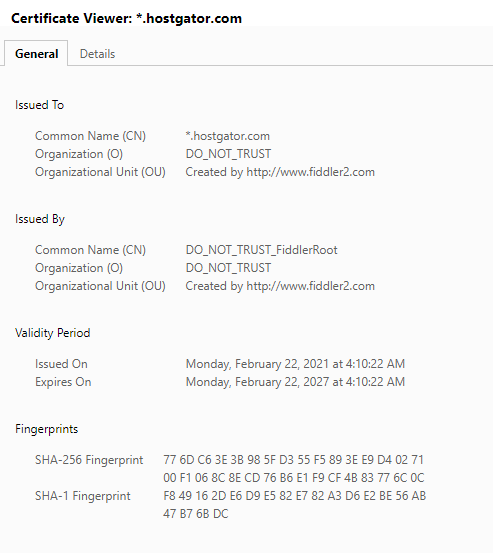
- More information can be found under the Details tab.
Microsoft Edge
- Go to an SSL-enabled website.
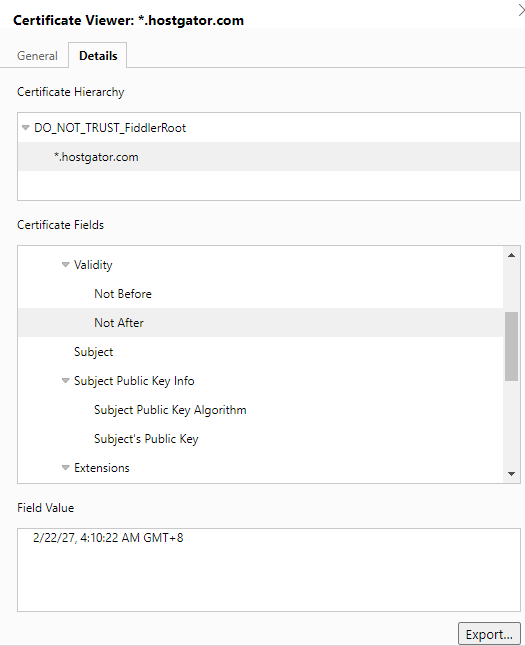
- Click on the padlock icon next to website's URL in the address bar.
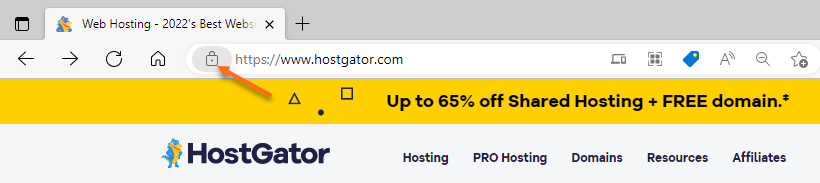
- In the pop-up window, click on Connection is secure.
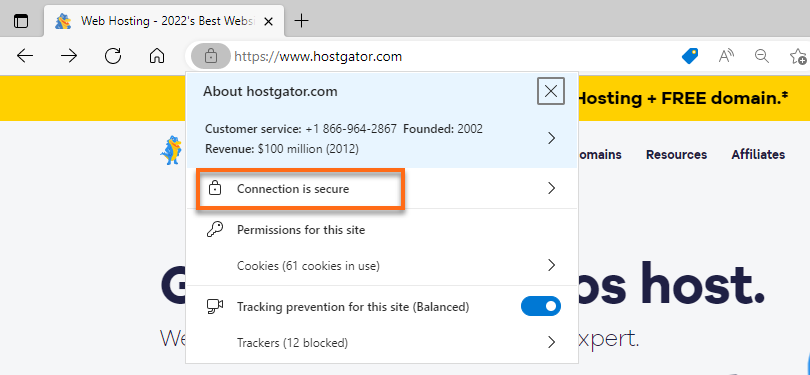
- Click the Show Certificate icon beside the "X" icon.
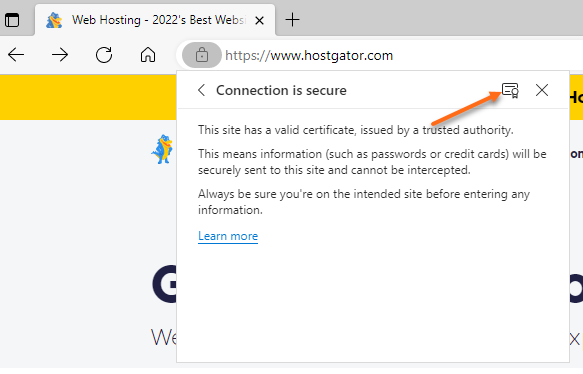
- The Certificate Viewer will appear on the pop-up window, displaying the following information:
- Issued To/Common Name - This is the domain where the SSL was issued.
- Issued By - This is your SSL Issuer.
- Validity Period - This shows your SSL certificate’s issuance and expiration dates.
- Fingerprints/Serial Number - This is your SSL certificate’s unique ID.
- More SSL information can be found under the Details tab.
Internet Explorer
- Go to an SSL-enabled website.
- Click on the padlock icon next to website's URL in the address bar.
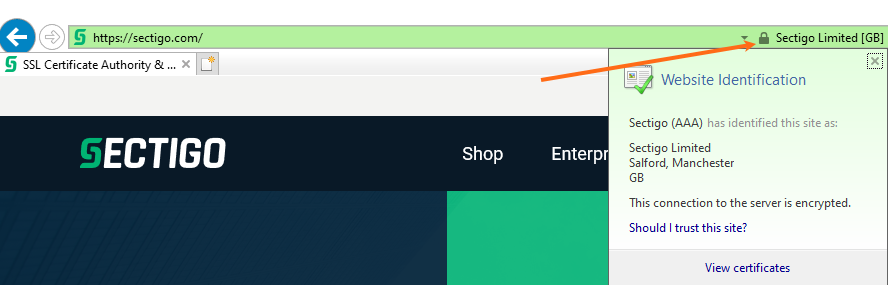
- Click View Certificates to view the SSL certificate details.
Related Articles
- How Do I Purchase an SSL and What Type Is It?
- SSL Getting Started
- SSL for Newbies
- What Type of SSL/Secure Certificate Do I Need?