Create Certificate Signing Request
A Certificate Signing Request (CSR) is required before you can purchase and start installing your SSL certificate. This request contains information about your domain and company, which the Certificate Authority (CA) will use to issue your certificate. Learn how to create CSR online following this comprehensive guide.
How to Generate a Certificate Signing Request
Follow the steps below to generate a CSR using csrgenerator.com :
- Open your web browser and visit csrgenerator.com.
- Fill out the form with the following details:
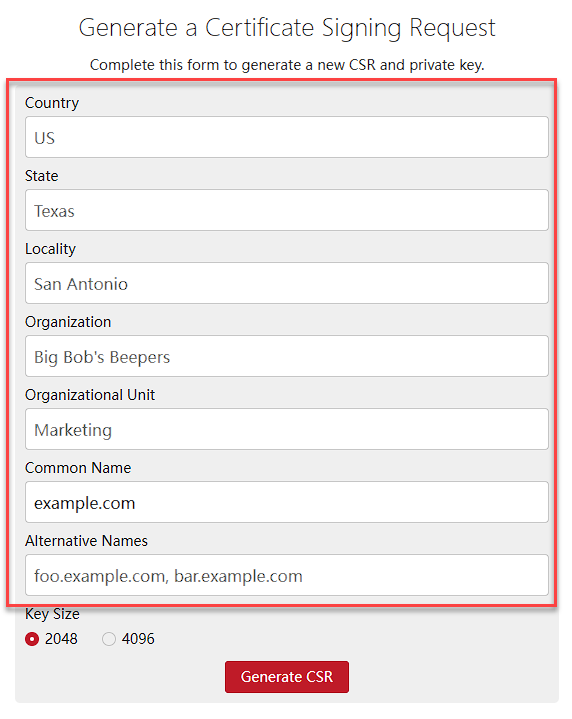
- Country: Two-letter country code (for example, US).
- State/Province: Provide the full name of your state or province.
- City/Locality: The city where your business is located.
- Organization: Your company’s legal name.
- Organizational Unit: Department name, such as IT or Web.
- Common Name: The domain name you want to secure (for example, www.example.com).
- Alternative Names: Add other domains or subdomains if needed (optional).
-
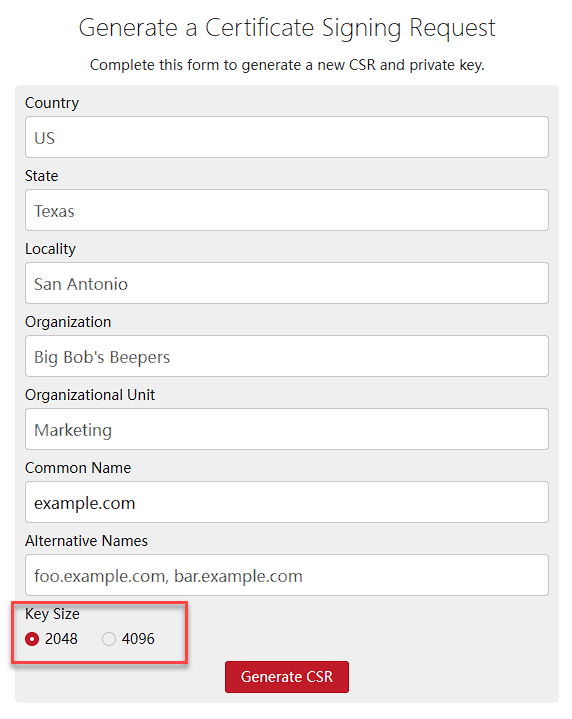
Select either 2048-bit (recommended) or 4096-bit encryption.
-
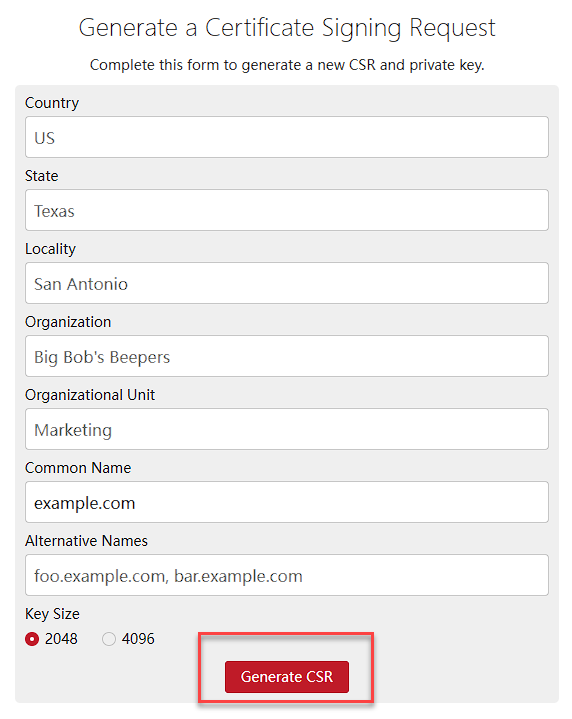
Click Generate CSR. The site will create both your CSR file and a private key.
-
Download and securely store both the CSR and the private key on your computer.
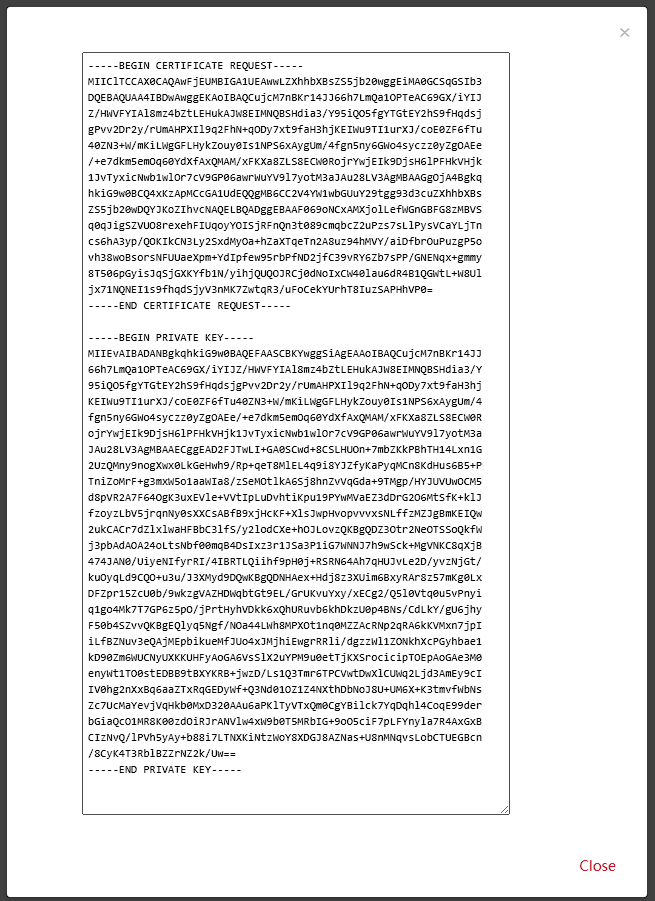
Warning: The website does not store private keys. If you lose it, you’ll need to create a new CSR. 6. Provide the CSR to your Certificate Authority (CA) when purchasing or renewing your SSL certificate.
Important Notes:
- Keep your private key safe. You’ll need it later when installing the SSL certificate.
- While csrgenerator.com is secure, advanced users may prefer generating CSRs directly on their server using tools like OpenSSL.
Once you have your CSR, you’re ready to purchase and install your SSL certificate.