How Do I Run a Traceroute on a Mac?
Traceroute is a utility that records the route between your computer and your HostGator server. It also displays the amount of time each hop takes. If you cannot reach your site, a traceroute will help us determine the issue. To run traceroute on a Mac, follow these steps: These steps were created using Mac OS X. For earlier operating systems, you will need to download and use a third-party program.
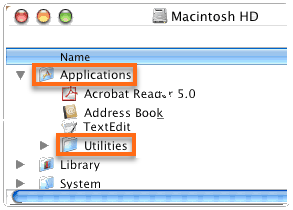
- From your hard drive, open the Applications folder and click Utilities folder.
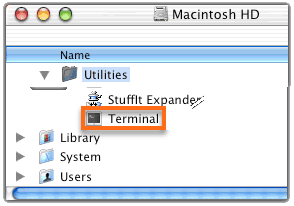
- Double-click Terminal.
- In the Terminal window, type traceroute followed by your domain name and hit enter.
Example: ``` traceroute www.hgexample.com

In this example, example.com is used. Be sure to replace example.com with your actual domain name.
4. Check for times between hops greater than 200 ms or that return asterisks ***, which indicates that your request has timed out.

**To copy the information follow these steps:**
1. Select the results, and then right-click and select **Copy** or press **COMMAND+C** to copy the text.
2. Paste the text into a text editor and save the file.
If there are long return times or your request timed out, copy the information and contact us via chat or phone for assistance.