Change Password and Contact Info - Plesk
There are a few ways to manage your Contact and Password information in Plesk.
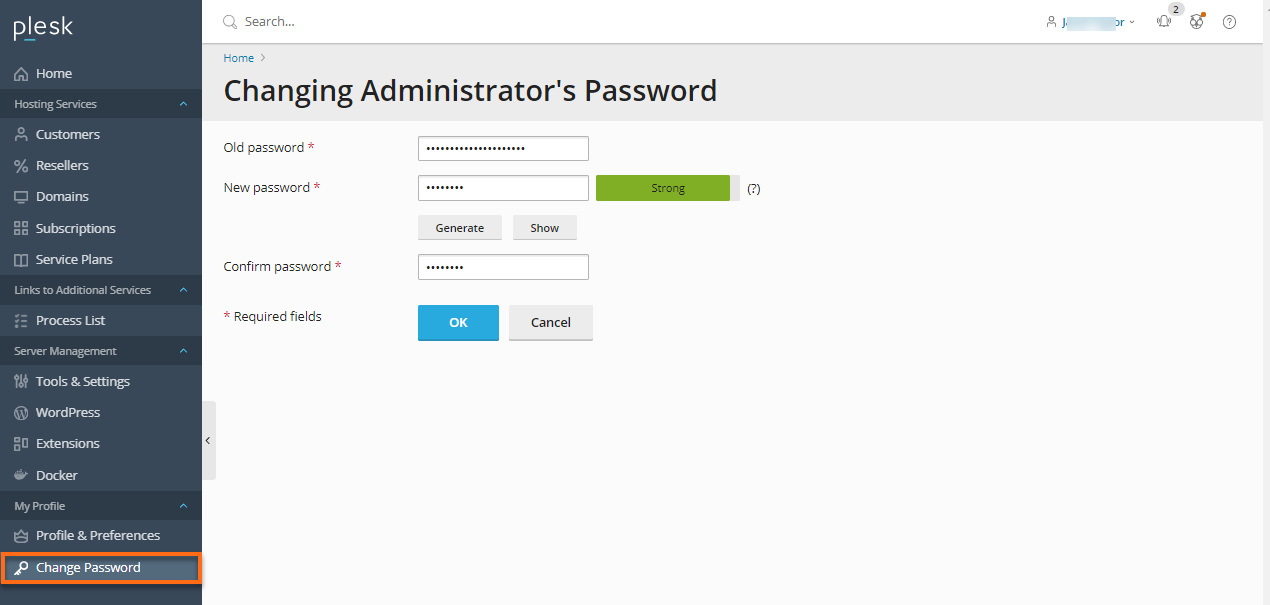
To Change Your Administrator's Password:
- Log in to the Plesk admin panel.
- Click Change Password in the navigation pane.
- Enter your old and new passwords.
- Confirm it and click OK.
To Update Your Contact Information:
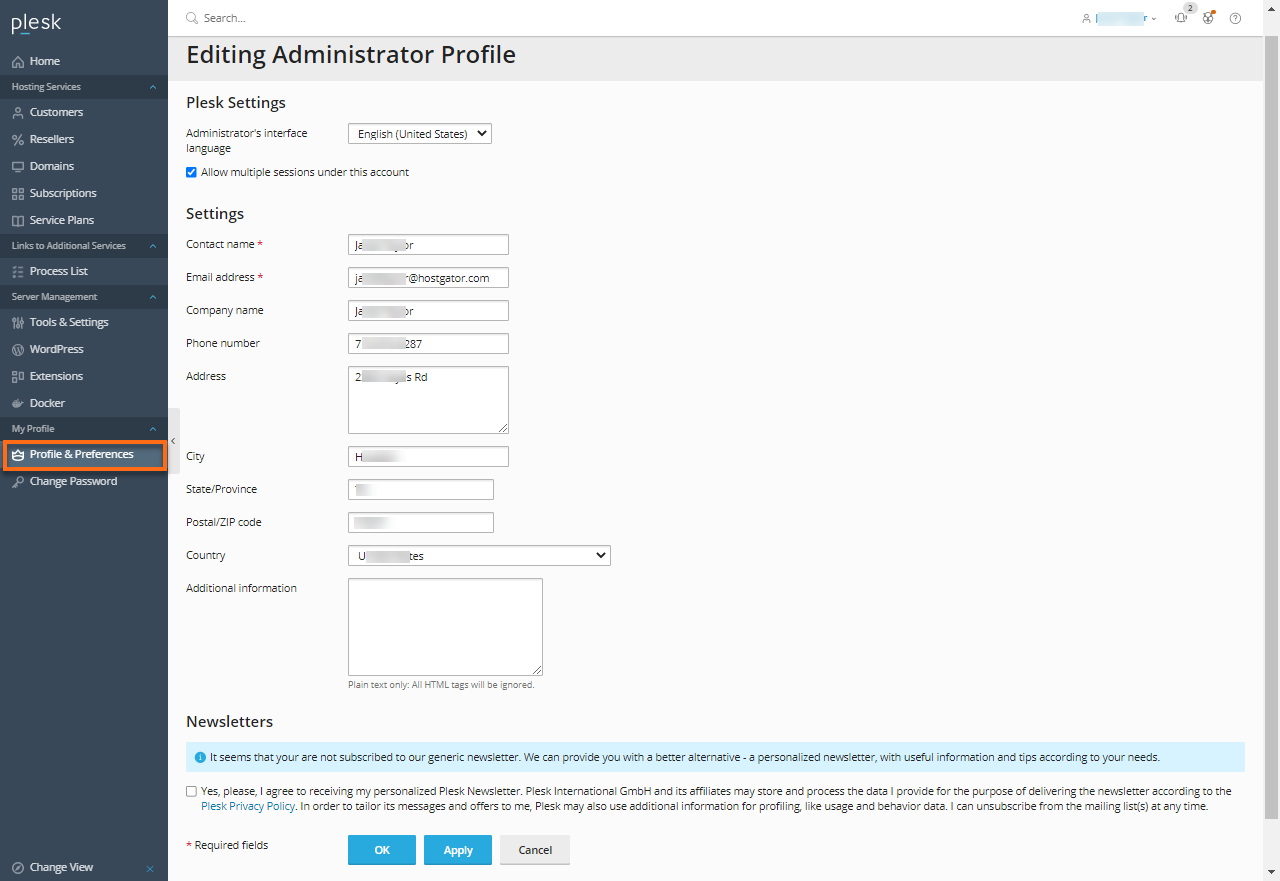
- Log in to the Plesk admin panel.
- Click the Profile & Preferences in the navigation pane.
- Update your information as required, and click OK.
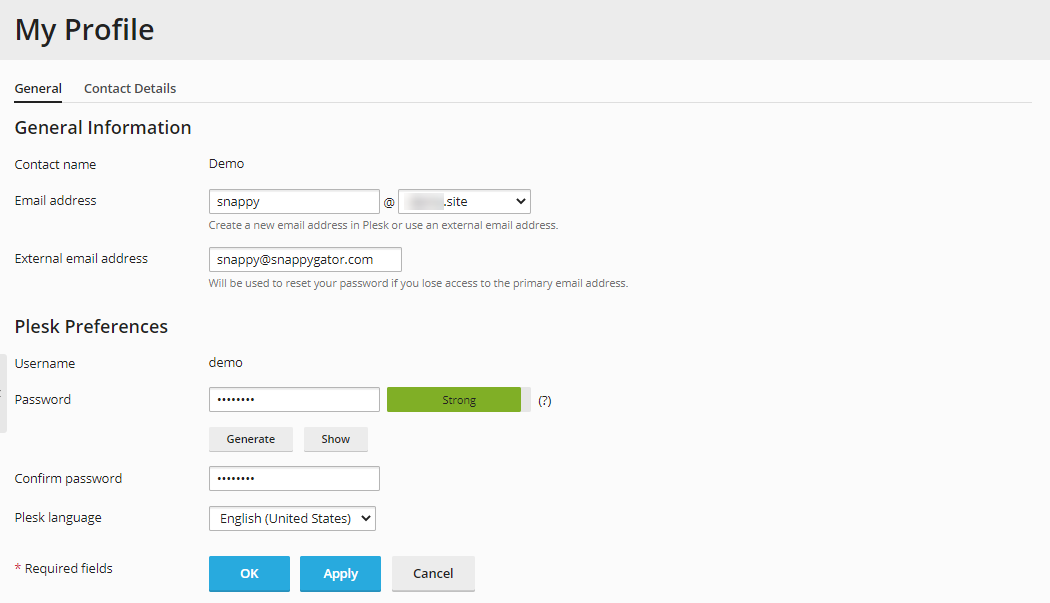
To Change Your Password for access to the Customer Panel:
- Log in to Plesk.
- Click your name on the top-right corner and select Edit Profile.

- In the profile section under General Information , type a new password.
- Confirm it and click OK.
To Change a Username or Password That You Use for Connecting to Your Subscription over FTP or SSH:
- Log in to Plesk.
- Go to Websites & Domains.
- Click Web Hosting Access.
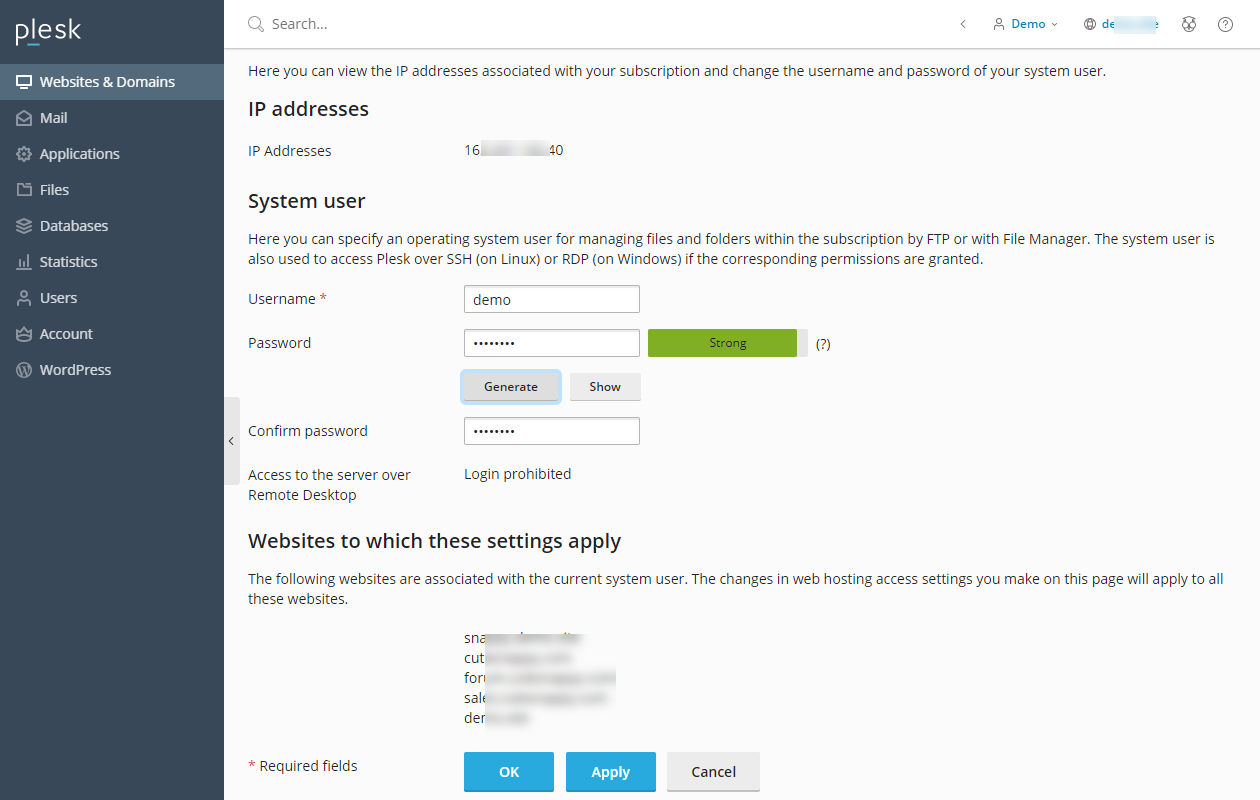
- Type the new username and old password, and click OK.
If you have forgotten your password, please contat Customer Support to have it reset.