How to Access and Modify CodeGuard
- CodeGuard Overview
- Manage
- Dashboard Overview
- Setting up CodeGuard - Site
- Setting up CodeGuard - Database
- Access and Modify CodeGuard
- Backups
- Monitor
- Restore
- FAQs
After you have purchased CodeGuard, you can access and manage your CodeGuard subscription within your HostGator account. The article will provide step-by-step instructions for the following:
- How to log in to CodeGuard ⤵
- How to upgrade CodeGuard ⤵
- How to cancel CodeGuard ⤵
How to log in to CodeGuard
To go to your CodeGuard Dashboard:
- Log in to your Customer Portal.
- Depending on the number of hosting packages in your account, please follow the steps below.
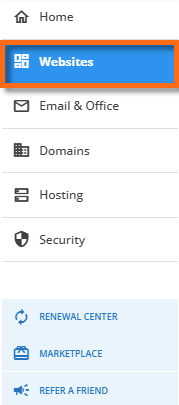
- If you have a single hosting package in your account, click Websites in the left-side menu.
- If you have multiple hosting packages in your account, please do the following.
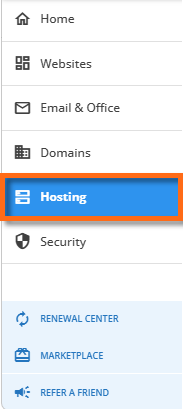
- Click Hosting in the left-side menu.
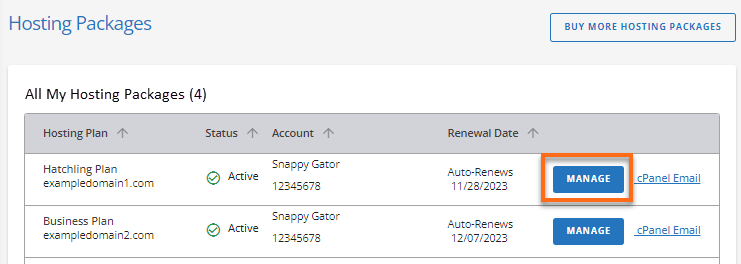
- Locate the hosting package where you installed CodeGuard, then click its Manage button.
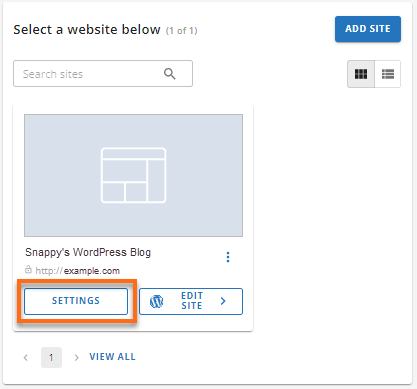
- On the Hosting Plan page, locate your website with CodeGuard and then click Settings.
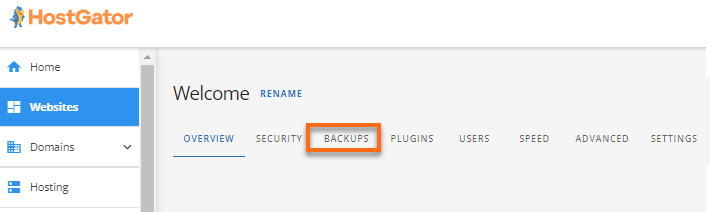
- Click the Backups tab.
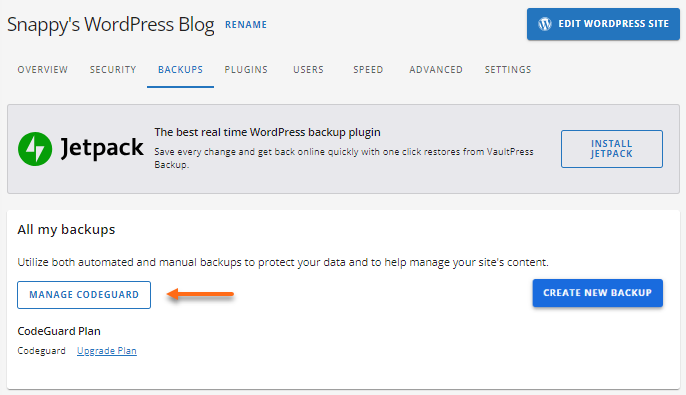
- Under the Backups tab, click Manage CodeGuard.
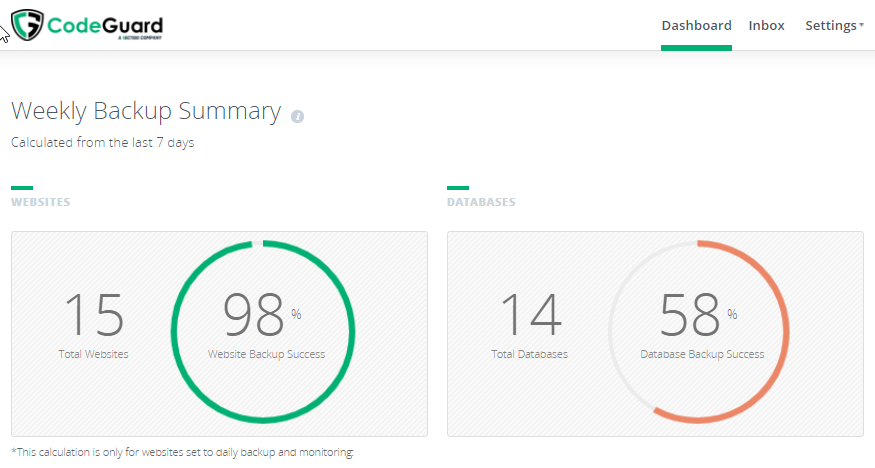
- You will be redirected to the CodeGuard Dashboard, where you can monitor, create, and restore website backups.
How to upgrade CodeGuard
You may want to upgrade your CodeGuard service to allow larger backups and enjoy the other features included in higher plans. To upgrade CodeGuard:
- Within the Hosting Plan page of your Customer Portal, click the Settings button of the website with CodeGuard you want to upgrade.
- Click the Backups tab.
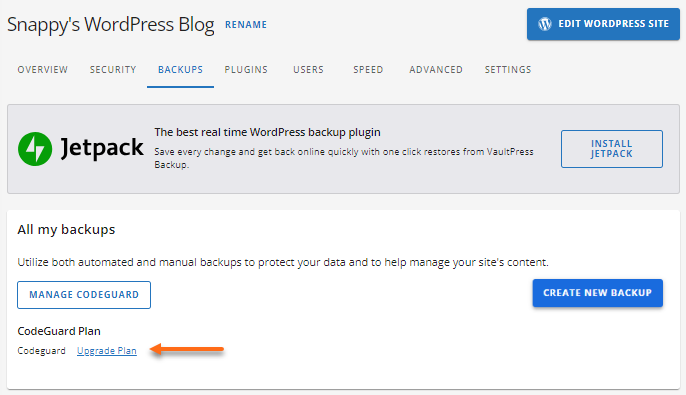
- Under CodeGuard Plan, click the Upgrade Plan link.
- Proceed to select your preferred CodeGuard plan and payment method to complete the upgrade. You may be prompted to provide billing information if you don't have an active payment method on file. Please enter your billing details to finalize your purchase.
How to cancel CodeGuard
To cancel your CodeGuard subscription, you have to turn OFF its auto-renewal feature within the Renewal Center of your Customer Portal, so you will no longer be billed or invoiced in your account. If you change your mind and decide to keep the CodeGuard addon, you must enable its auto-renewal feature again or manually renew CodeGuard within the Customer Portal. For detailed instructions on how to disable (or enable/renew) the CodeGuard service, please visit the following article.
- Customer Portal - How to Use the Renewal Center
Important: :
To avoid getting your subscription suspended or canceled unknowingly, HostGator generates invoices and processes automatic payments based on your subscription (hosting plan, addons, or domain renewal).
- If you wish to cancel your CodeGuard subscription, you will have to turn off its auto-renewal feature before your account auto-generates an invoice for the renewal (which is 45 days before the addon's renewal date).
- If an invoice is already generated, you may still turn off your auto-renewal feature; however, you will need to contact HostGator's Support so we can delete the invoice from your account and you can avoid getting charged (auto-charging takes place 15 days before the addon's renewal date).
For more information, please check the article Invoicing and Automatic Billing. Need further assistance? Please do not hesitate to contact HostGator's Support via phone or chat so we can assist you!