How to Setup FTP on New VPS & Dedicated Hosting Servers
This article will explain how to set up FTP on a VPS and a Dedicated server. For cPanel version 11.86 or prior, cPanel decided to disable FTP by default. For additional information on why FTP is disabled by default in certain versions of cPanel, please click and review the following article by cPanel — FTP Disabled by Default to find out more.
How to Set up FTP
-
Log in to your Bluehost Account Manager.
-
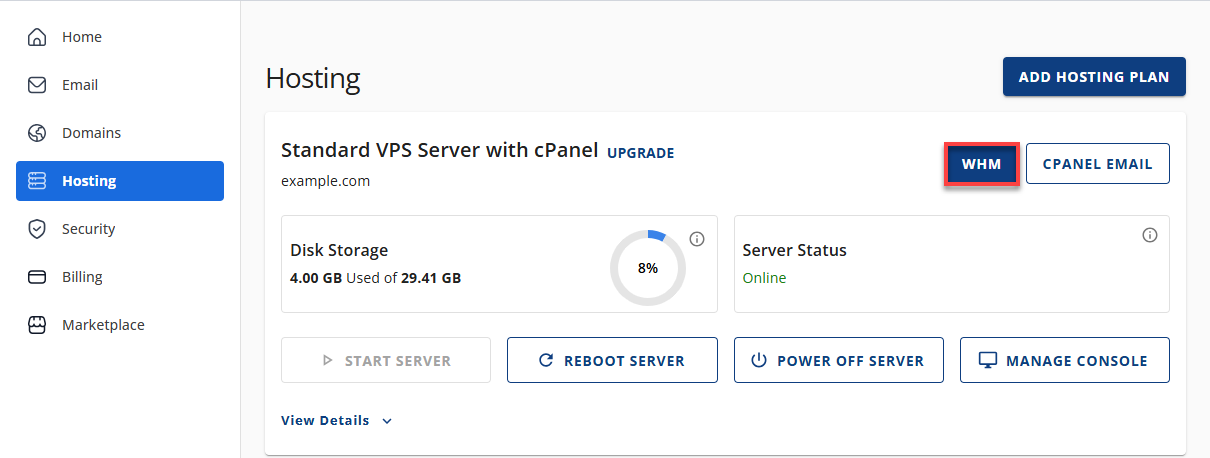
Click Hosting in the left-hand menu.
-
In the hosting details page, click the WHM button.
-
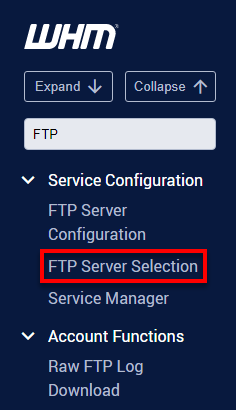
Search for FTP in the top left corner of the WHM.
-
Select FTP Server Selection.
-
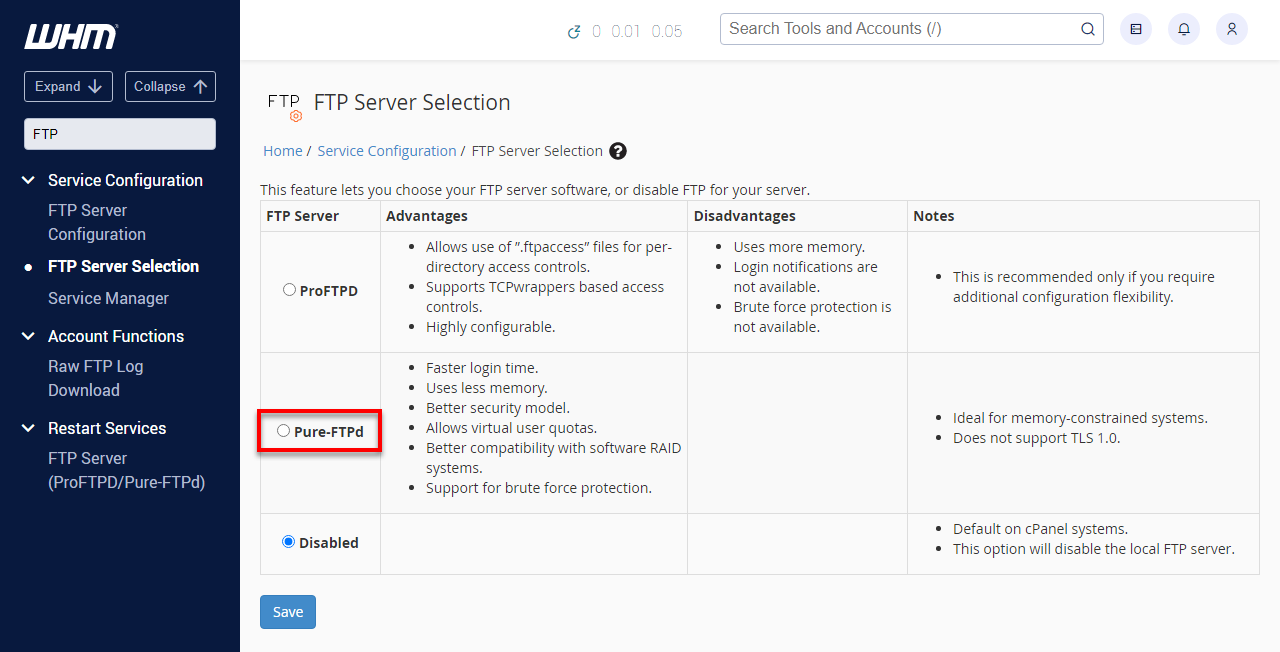
Here, the default setting for FTP is Disabled.
-
We advise using the PURE-FTPD service as it is the server's faster, more reliable FTP service.
-
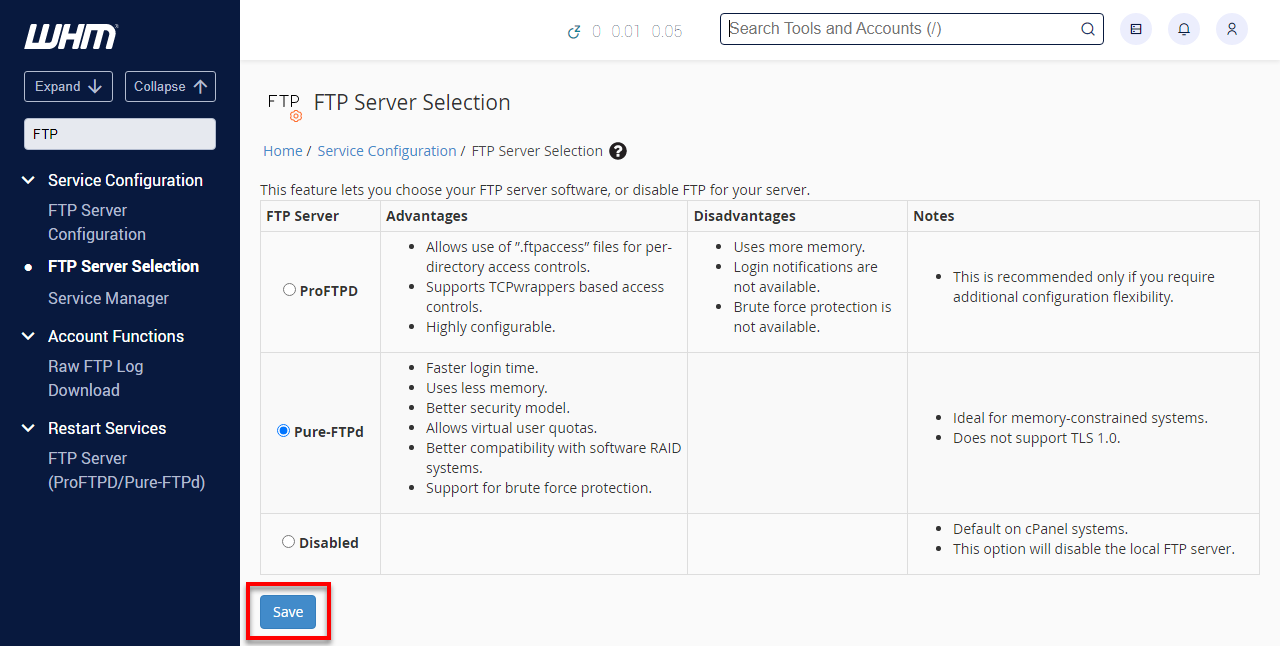
Once the new option is selected, scroll down and click Save.
Summary
This article was created to help customers who are currently paying for a VPS hosting or Dedicated hosting plan. Here's a quick summary of how you can set up an FTP server on VPS or dedicated servers using cPanel hosting:
- To set up FTP, log into your server's WHM using your username and password.
- To access the FTP Server Selection, search for FTP in the top left corner of the WHM and select FTP Server Selection.
- The default setting for FTP is disabled, but the PURE-FTPD service is recommended for its faster, more reliable service.
- Once the new option is selected, save it in the FTP Server Selection.
If you need further assistance, feel free to contact us.