How to Change the Password of an Email Account
You can make changes to your email account through cPanel. The instructions below will guide you through changing your email password within cPanel.
Changing email password through Email Accounts in cPanel
If the email account owner has lost or forgotten the password, the password can be changed through cPanel. This method does not require the old password.
- Log in to cPanel. There are two ways to access your cPanel.
- Option 1 : Access your cPanel directly.
- Option 2 : Access your cPanel via your Customer Portal.
- Log in to your Customer Portal.
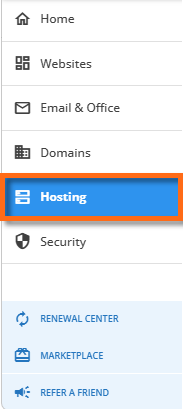
- Click Hosting in the left-side menu.
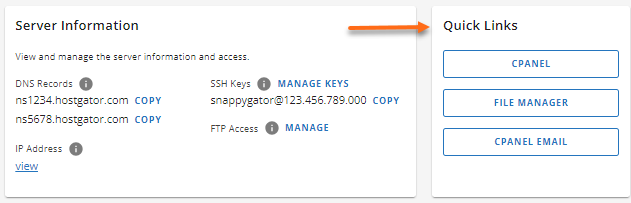
- If you have a single hosting package in your account, scroll down to the Quick Links section.
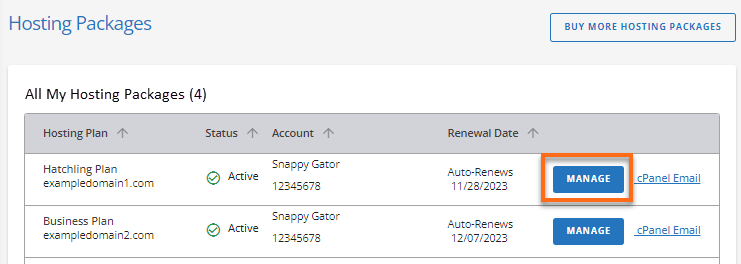
If you have multiple hosting packages in your account, locate the hosting package you want to manage on the Hosting Packages page, then click its Manage button.
 4. Under the Quick Links section, click the cPanel Email button.
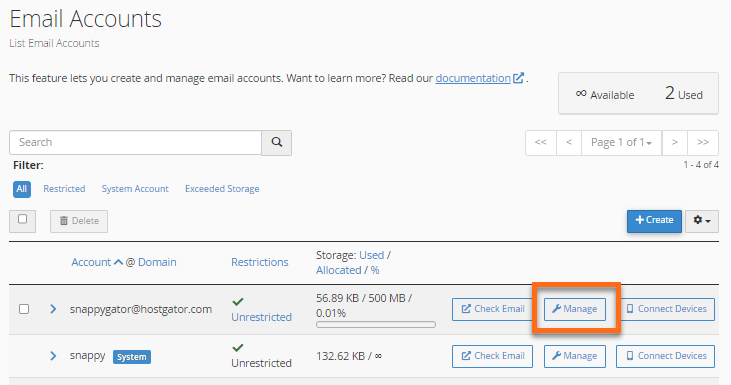
 2. Within the Email Accounts section of cPanel, click the Manage button to the right of the email account you are modifying.
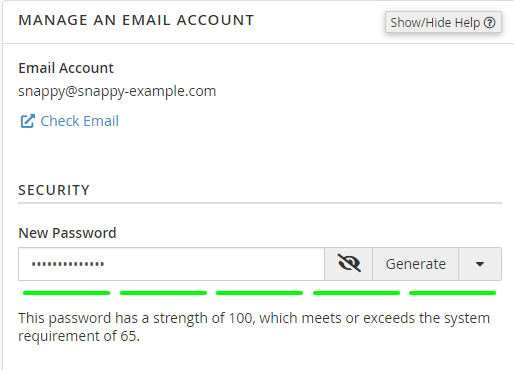
 3. On the Manage An Email Account page, navigate to theSecurity section.Generate option.
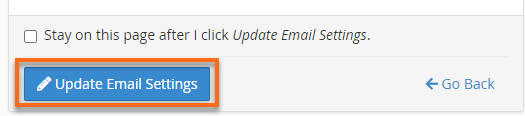
 4. Once done, click on Update Email Settings at the bottom of the page.
Are you still having an issue with your email password? Please contact us via phone or chat so we can assist you.