Customer Portal - User and Roles Permissions
- Domain Functions
- Register
- Transfer In
- Transfer Away
- Renew
- Domain Lock
- Domain Connections
- Domain Privacy + Protection
- Domain Expiration Protection
- Overview
- Nameservers
- DNS
- Contacts
- Security
- Move & Access
- Move Accounts
- Manage Users
- Request Ownership
- Change Ownership
- Request Auth Code
This article will detail the user and roles and what the individual users and roles can and cannot do when logged into the Customer Portal or when calling HostGator for support. Here are the topics discussed in this article.
- What is an Account User and Roles? ⤵
- How to Add (Admin/Tech) Users to your Account ⤵
- How to Manage Users in Your Account ⤵
What is an Account User and Roles?
Within the Customer Portal, multiple users can be assigned different permissions corresponding to their user type. These types include the following:
- Primary Contact (limited to one per account) - This user has full authority to make changes to the account, which is ideal for the primary account holder. If you need to transfer the primary user role to someone else, please refer to the How to Change the Primary Contact on Your Account article.
- Administrative Contact - This user has limited permissions on the account; this is ideal for administrative tasks on the account.
- Technical Contact - This user has restricted capabilities that are primarily focused on product maintenance.
Below is a quick breakdown of the different account roles and their access.
| Permissions | Primary Contact | Administrative Contact | Technical Contact |
|---|---|---|---|
| Edit the Account Holder and/or Primary | Yes | No | No |
| Edit payment information | Yes | Yes | No |
| Add/Edit/Delete other user roles | Yes | Yes | No |
| Purchase new products | Yes | Yes | No |
| Manage products and services | Yes | Yes | Yes |
| Renew products and services | Yes | Yes | Yes |
| Edit the domains' WHOIS registrant contact information | Yes | No | No |
| Edit the domains' WHOIS Admin or Tech user information | Yes | Yes | Yes |
| Add users | Yes | Yes | No |
How to Add (Admin/Tech) Users to your Account
To add an Administrative and/or Technical user to your account:
-
Log in to your Customer Portal.
-
Click the Profile icon in the top-right corner of your page and selectUsers & Roles from the list of options.

-
On the Account & Users page, select your account and click its Manage button.

-
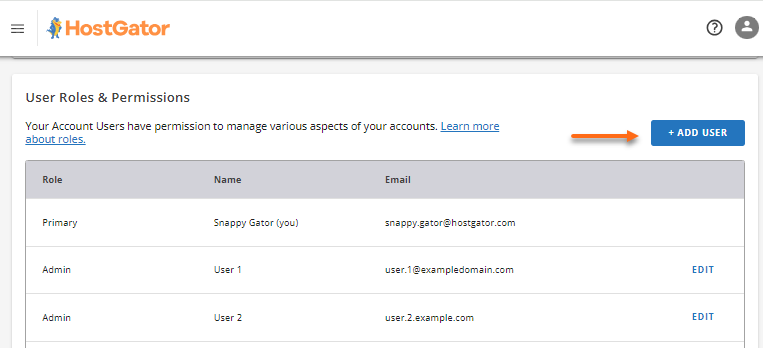
Within the Account page, scroll down to the User Roles & Permissions section, then click the + Add User button.
-
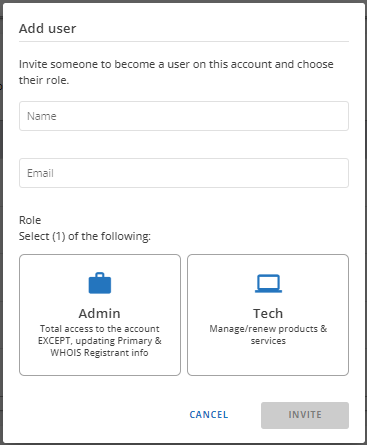
Enter the name and email address of the user you would like to add, then select the role they will have in your account.
-
Once done, click the Invite button.
-
An invite will be sent to the email address you provided. The user can set their own user ID, password, and security PIN. Once the user has accepted, they will appear on the Account & Users page.
How to Manage Users in Your Account
Depending on your user role, you can edit or remove users and user roles on the Account & Users page within the Customer Portal. Please see the section above to know what your role can or cannot do within your Customer Portal.
-
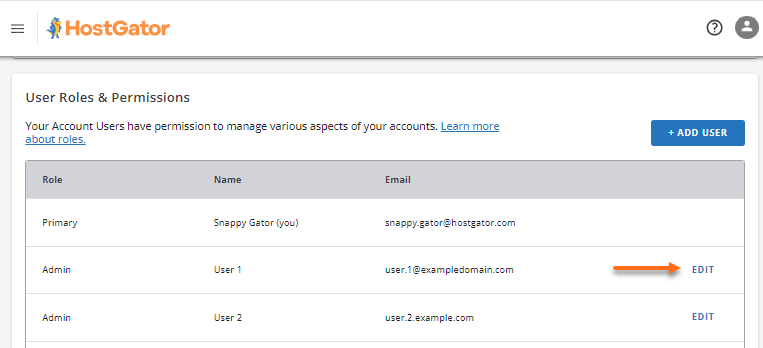
Within the User Roles & Permissions section of your Customer Portal, Click the Edit link next to the user you want to update.
-
Make updates on the user's role.
-
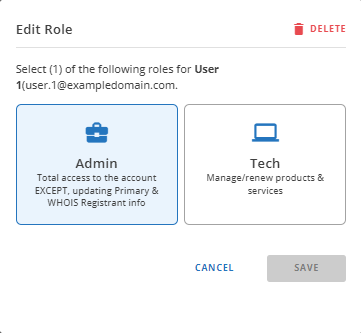
To edit the role, select the role you want to update the user to, then click the Save button.
-
To remove the user, click Delete in the top-right corner. Confirm the removal by clicking the Delete button in the pop-up window.

Still have questions or concerns? Please contact HostGator's Support via phone or chat so we can assist you!