Managing Hotlink Protection
Hotlink protection is essential for preventing unauthorized websites from using your images and files, which can drain your bandwidth. This guide will show you how to set up hotlink protection in your Customer Portal to keep your content secure and preserve your resources. This article will discuss the following topics:
- Understanding Hotlink Protection
- Managing HotLink Protection
- How to set up Hotlink Protection
- Customize Fields
Understanding Hotlink Protection
To protect your images or other files from being hotlinked on another website, you may use hotlink protection. Hotlinking is the use of an image of a file on another server by pulling the source image from the original server. This uses the bandwidth of your HostGator account. It appears as though your images are on the other website, even though the source is pulling from your HostGator account. Hotlink protection stops this type of leeching or bandwidth theft.
Managing Hotlink Protection
Setting up hotlink protection is easy by using the Hotlink Protection Management tool built into the Customer Portal.
How to Set Up Hotlink Protection
-
Log in to your Customer Portal.
-
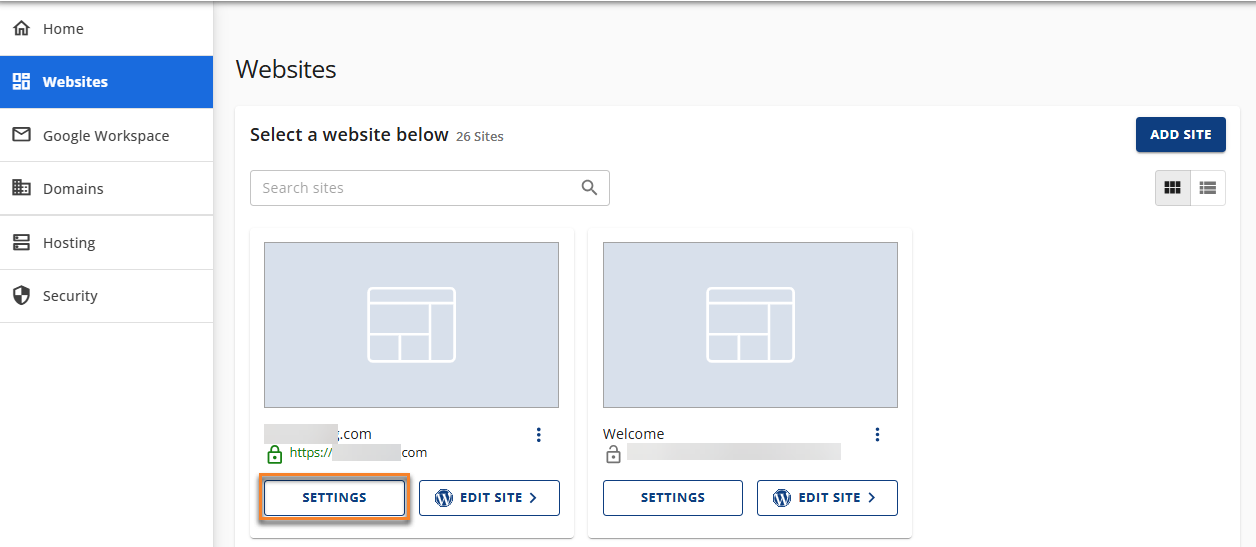
Go to Websites and click the SETTINGS button on the website you need to set up the Hotlink Protection.
-
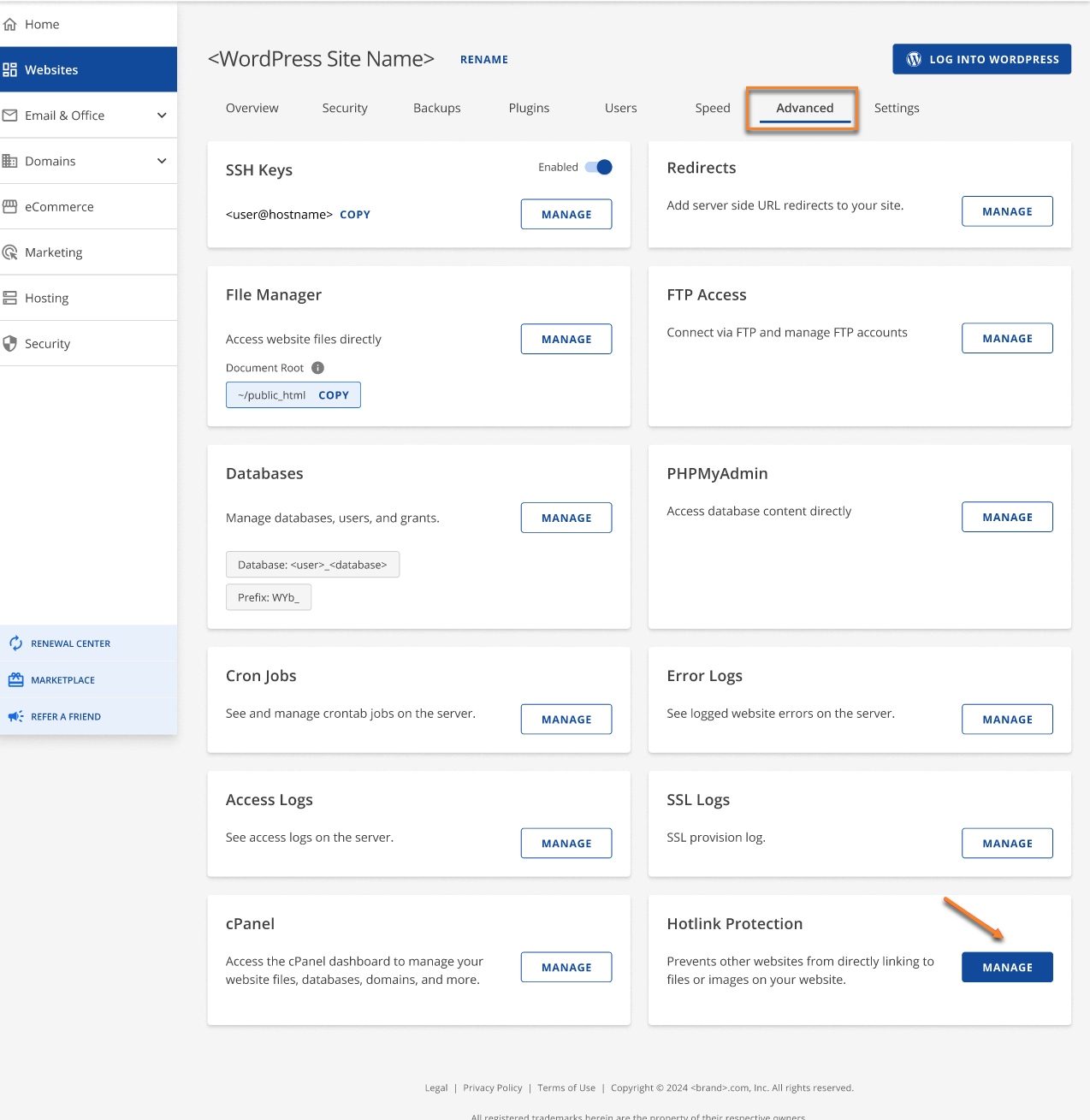
In the Website details page, go to the Advanced tab and click the MANAGE button under Hotlink Protection.
-
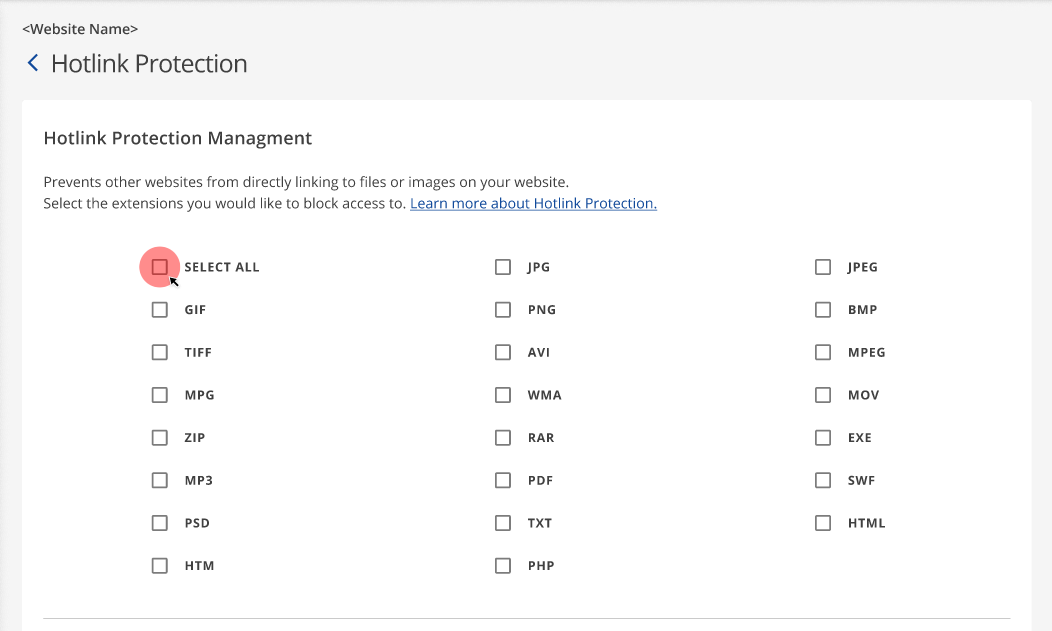
In the Hotlink Protection Management section, you can choose the file type you want to protect, or you can click the box beside the SELECT ALL option to protect all types of files available on the list.
Customize Fields
If you still want other people to have access to your files but don’t want them to be hotlinked, you can customize their access by following the directions below.
-
You can tick the box under the Direct Requests section to give access to the restricted files.

-
To redirect blocked requests, provide the URL of the page you’d like to show in the URL field.
