Adding or Changing Your Trusted Phone Number
Want to safeguard your digital life? Your trusted phone number is your secret weapon! It’s like a personal bodyguard for your online accounts. By linking it to your account, you’re adding an extra layer of protection, making sure only you can access your private information. It’s a simple step that can make a big difference. Even after enabling 2-step Verification, your trusted phone number remains a reliable backup for account verification when reaching out to Customer Support.
- Add a Trusted Phone Number ⤵
- Change a Trusted Phone Number ⤵
- Unsupported Countries ⤵
Add a Trusted Phone Number
When you log in to your new account, you will be prompted to add a trusted phone number. You can either enter a trusted phone number using the card provided or choose to SKIP this step and add it later in the Security section of the My Profile & Security page.
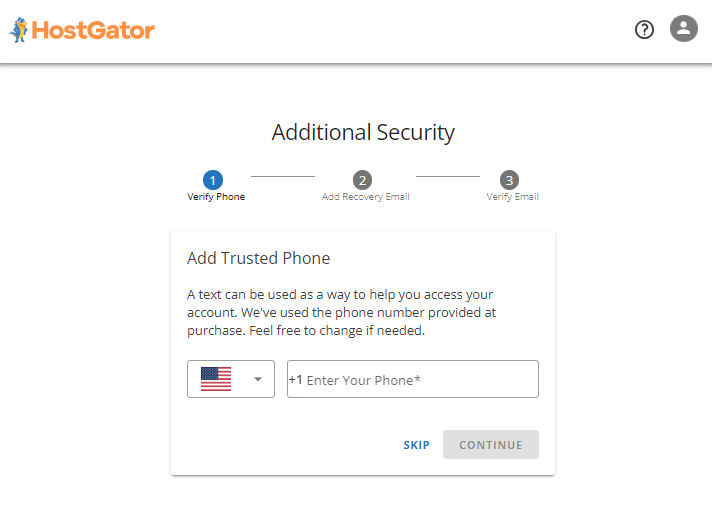 Below are steps to add a Trusted Phone Number via the My Profile page.
- Log in to your Customer Portal.
- Tap the Profile icon, then select My Profile from the drop-down menu.
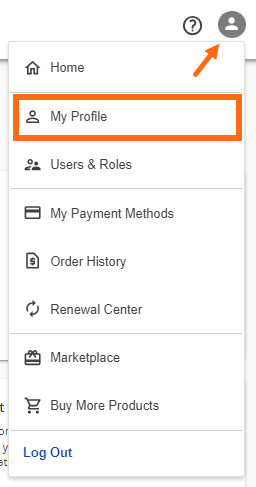
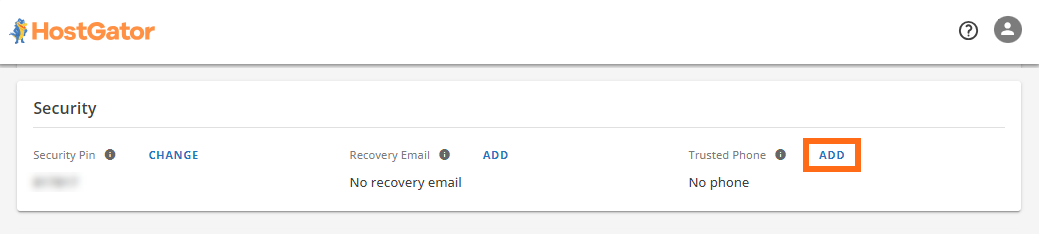
- Navigate to the Security section and click the ADD button in Trusted Phone.
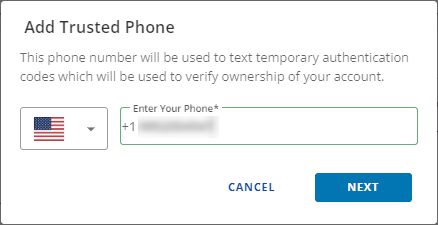
- Add your phone number in the field provided, then click NEXT.
- Enter the code sent to your phone number, then click the VERIFY button.
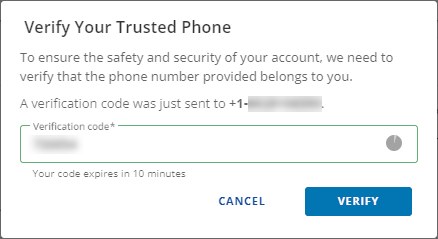
Your trusted phone was successfully added.
Change a Trusted Phone Number
Note: Updating the Trusted Phone Number will not trigger a 60-day domain lock. Below are steps to change your trusted phone number.
- Log in to your Customer Portal.
- Tap the Profile icon, then select My Profile from the drop-down menu.
- Navigate to the Security section, tap CHANGE next to Trusted Phone.
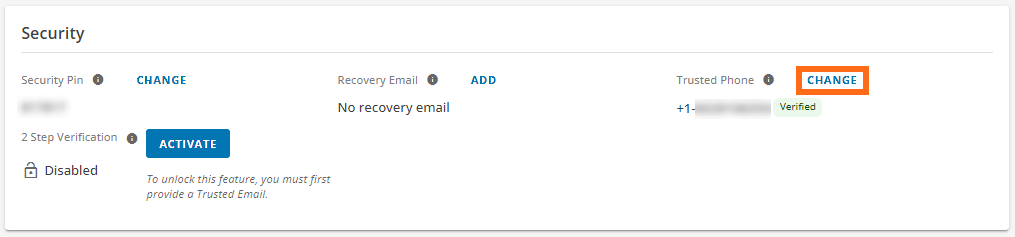
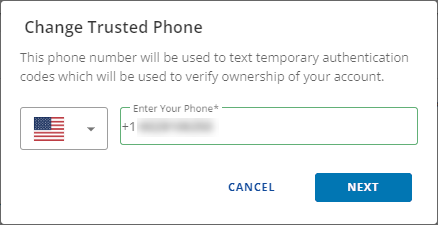
- Enter the new phone number, then click NEXT.
- Enter the code sent to the new phone number you provided, then click the VERIFY button.
Your Trusted Phone was successfully updated!
Unsupported Countries
Listed below are countries currently not supported in setting up a Trusted Phone Number.
| A-F | G-L | M-R | S-Z |
|---|---|---|---|
| Afghanistan | Gabon | Madagascar | SaintKitts and Nevis |
| Algeria | Gambia | Malawi | SaintLucia |
| AmericanSamoa | Georgia | Mali | SaintMartin French |
| Angola | Ghana | MarshallIslands | SaintPierre and Miquelon |
| Anguilla | Greenland | Martinique | SaintVincent and the Grenadines |
| Antiguaand Barbuda | Grenada | Mauritius | Samoa |
| Azerbaijan | Guadeloupe | Micronesia(Federated States of) | SanMarino |
| Bangladesh | Guernsey | Monaco | SaoTome and Principe |
| Belize | Guinea | Mongolia | Senegal |
| Benin | Guinea-Bissau | Montserrat | Serbia |
| Bermuda | Guyana | Morocco | Seychelles |
| Bolivia | HolySee (Vatican City State) | Myanmar | SierraLeone |
| BritishIndian Ocean Territory | Honduras | Nauru | Slovenia |
| Burundi | Indonesia | Nepal | SolomonIslands |
| Cambodia | Iran(Islamic Republic of) | Niger | SouthSudan |
| Cameroon | Iraq | Nigeria | SriLanka |
| CentralAfrican Republic | Israel | Niue | Sudan |
| Chad | Jersey | NorthernMariana Islands | SyrianArab Republic |
| China | Jordan | Oman | Tajikistan |
| Comoros | Kazakhstan | Pakistan | Timor-Leste(East Timor) |
| Congo | Kiribati | Palau | Tonga |
| CookIslands | Kosovo | PalestinianTerritory (Occupied) | Turkmenistan |
| DemocraticPeople’s Republic of Korea | Kuwait | PapuaNew Guinea | Turksand Caicos Islands |
| DemocraticRepublic of the Congo | Kyrgyzstan | Philippines | Tuvalu |
| Dominica | LaoPeople's Democratic Republic | Rwanda | Uganda |
| ElSalvador | Lebanon | Uzbekistan | |
| EquatorialGuinea | Lesotho | Vanuatu | |
| Eritrea | Liberia | Vietnam | |
| Estonia | LibyanArab Jamahiriya | VirginIslands British | |
| Ethiopia | Liechtenstein | VirginIslands US | |
| FalklandIslands (Malvinas) | Wallisand Futuna Islands | ||
| FaroeIslands | Yemen | ||
| FrenchGuiana | Zambia | ||
| Zimbabwe | |||
| Need further assistance? Please don't hesitate to reach out via phone or chat, and we'd be happy to assist you! |