Working with Text in Weebly
As we upgrade our Customer Portal to an optimized and easy-to-use design, you may find some hosting products and/or services no longer available. Due to this update, Weebly is no longer offered by HostGator for new signups. If you currently have the service, there will be no change to your product or service.
Adding text to your site is easy. Simply drag any of the text elements to your page. The text elements available are Title and Text. Learn how to manage images in our Adding Images in Weebly article.

Formatting Text Elements
Once you have added a text element to your page, you can edit it using the text toolbar.
 To make edits, simply highlight the text you want to change. A basic formatting toolbar will appear, which you can use to edit your highlighted text:
| Icons | Description |
|---|---|
 | Bold the selected text. |
 | Italicize the selected text. |
 | Underline the selected text. |
 | Increase/decrease font size. |
 | Change the color of the text. |
 | Turn your highlighted text into a link. |
 | Align the text to the left (default), center, right, or justified. |
 | Create an unordered list. |
 | Create an ordered list. |
 | Reset the pasted text to the default text options on your site. |
 | Undo/redo changes. |
Moving & Copying Elements
You can use basic formatting shortcuts like CTRL + C, CTRL + X, or CTRL + V, similar to word processing apps, to copy, cut, or paste elements on your Weebly page. Additionally, you can move or copy an entire set of elements using Weebly's Move/Copy feature. To move or copy a set of elements in Weebly:
- On your Weebly page, hover over the element you want to move/copy until you see the blue control box around it.

- Click the arrow in the upper-left corner until you see the Move/Copy pop-up box.
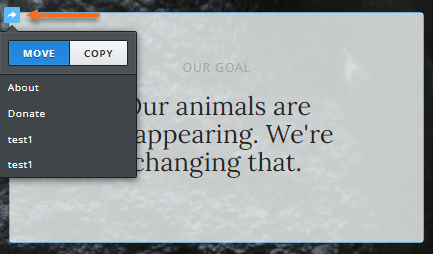
- Click Move or Copy.
- Select the destination where you want to move or copy the selected element.
