CodeGuard Dashboard Overview
- CodeGuard Overview
- Manage
- Dashboard Overview
- Setting up CodeGuard - Site
- Setting up CodeGuard - Database
- Access and Modify CodeGuard
- Backups
- Monitor
- Restore
- FAQs
The CodeGuard Dashboard is a management tool that displays the status of backups and restores versions, keeps track of file changes, and sends notifications to the account owner. This article will provide a brief description of what to expect when navigating through the CodeGuard Dashboard.
- Dashboard ↴
- Inbox ↴
- Settings ↴
Dashboard
Weekly Backup Summary
CodeGuard users will see the Weekly Backup Summary section immediately after logging in to their CodeGuard account.
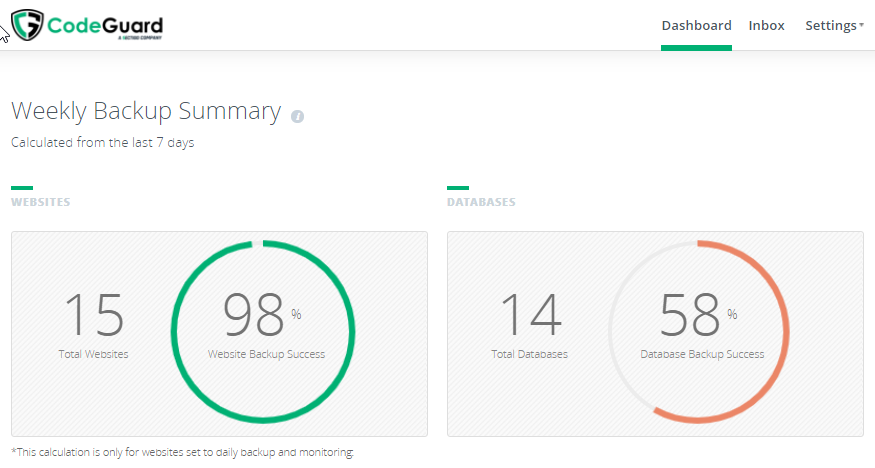 In this section, you will see the following information:
- The number of websites that are set up with CodeGuard.
- The rate of website data backed up by CodeGuard.
- The number of databases set up with CodeGuard.
- The rate of database data backed up by CodeGuard.
Below the Weekly Backup Summary section, you will find the Back up a Site , Website Backup, and Other Databases sections.
Back up a Site
 During initial setup, your primary domain's website is automatically added to the CodeGuard Dashboard. However, you need to manually add all databases and other websites under your hosting account to the CodeGuard Dashboard so CodeGuard can create backups for them. For a more in-depth tutorial on how to back up a new site, please see Setting up CodeGuard – Site.
Website Backup
During initial setup, your primary domain's website is automatically added to the CodeGuard Dashboard. However, you need to manually add all databases and other websites under your hosting account to the CodeGuard Dashboard so CodeGuard can create backups for them. For a more in-depth tutorial on how to back up a new site, please see Setting up CodeGuard – Site.
Website Backup
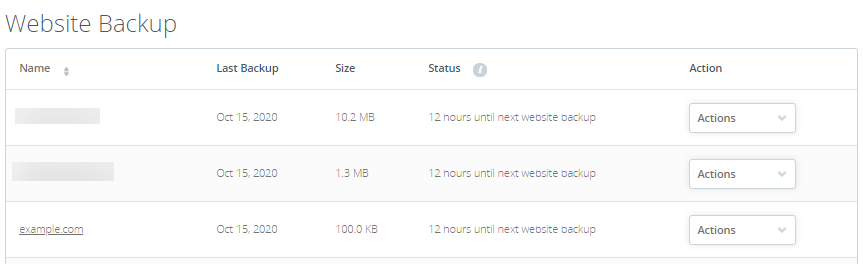 By clicking on a site name, users can review the status of their site's backup and access various other features through the following tabs:
Files tab
By clicking on a site name, users can review the status of their site's backup and access various other features through the following tabs:
Files tab
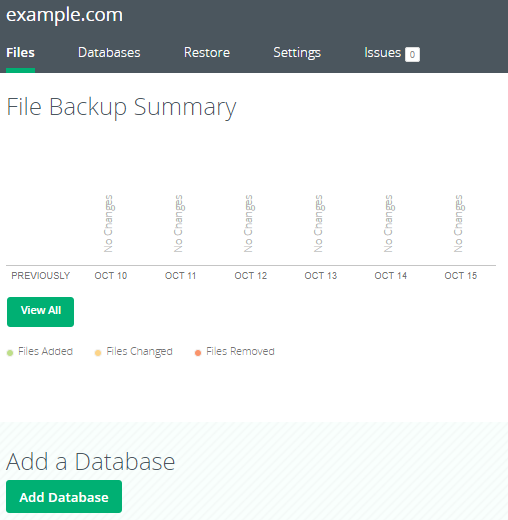 This section displays how many files have been modified with each backup and lists whether the files were added, removed, or edited. Users can also see the proportion of the various file types within their current backup and request a new backup.
Databases tab
This section displays how many files have been modified with each backup and lists whether the files were added, removed, or edited. Users can also see the proportion of the various file types within their current backup and request a new backup.
Databases tab
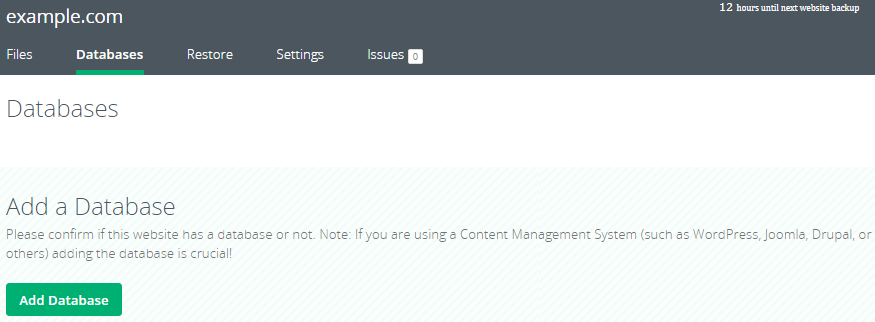
This section displays the databases automatically detected and modified with each backup and lists whether any lines were added, removed, or edited.
Restore tab
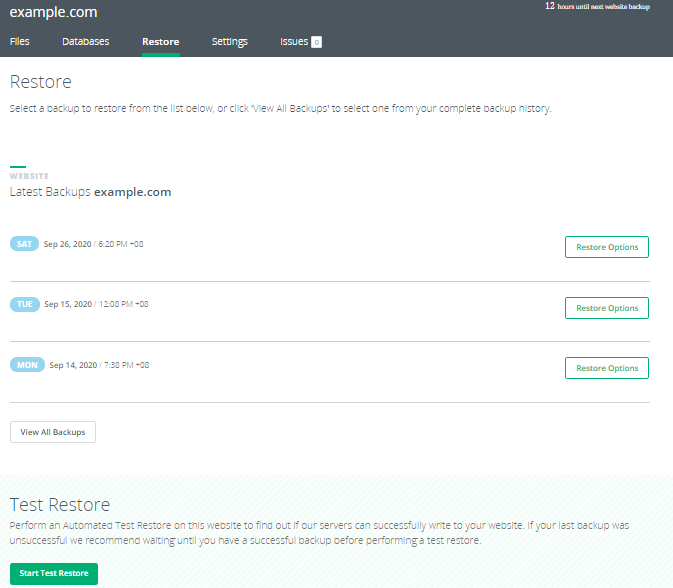 This section allows users to view the number of backup versions on file available to restore. By clicking on the Restore Options button next to an available backup, users can choose from three options:
- Request a zip file of the backup version and potentially replace files manually
- Restore all files from a backup version
- Search for a single file to restore
Settings tab
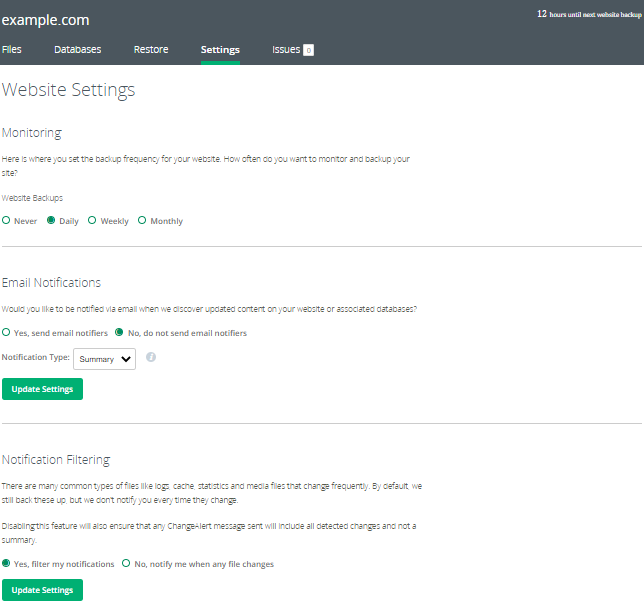
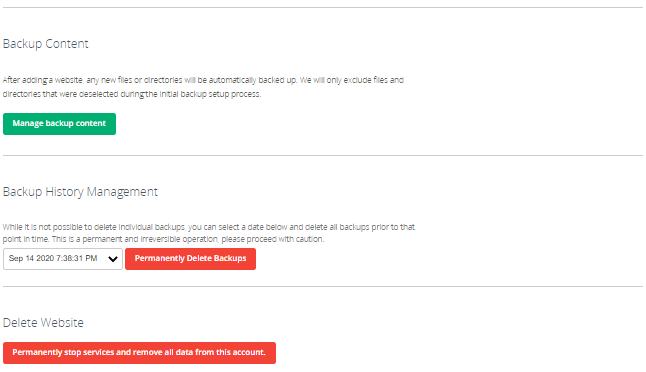 This section allows users to customize settings for monitoring and notifications. Users can set monitoring frequency and toggle settings for email notifications and notification filtering.
Additional account settings are available in the Settings drop-down menu in the top-right corner of the CodeGuard dashboard.
Issues tab
This section allows users to customize settings for monitoring and notifications. Users can set monitoring frequency and toggle settings for email notifications and notification filtering.
Additional account settings are available in the Settings drop-down menu in the top-right corner of the CodeGuard dashboard.
Issues tab
 This section displays any backup issues that CodeGuard is able to detect.
Other Databases
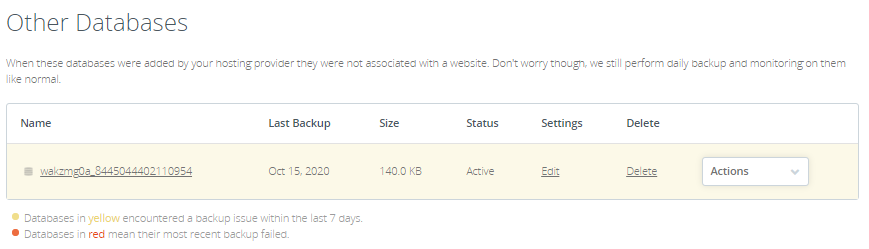 This section shows a list of database backups generated by CodeGuard.
Inbox
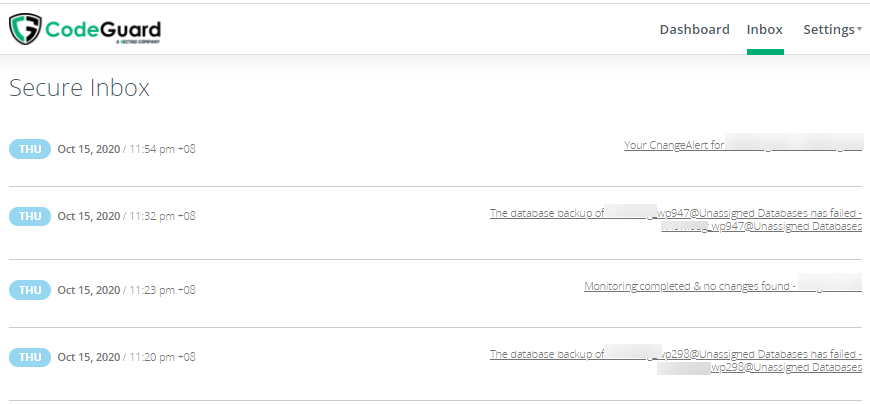 This section displays all notifications sent from CodeGuard to the user's email address, allowing users to track notification history and ensuring that users have a way to be notified at all times.
Settings
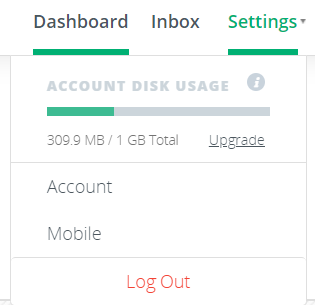 The Account Disk Usage under Settings in the top-right corner of the page also allows users to view the total amount of disk space used for their CodeGuard account. The Settings also shows the configuration for your Account and Mobile.
If you need assistance navigating your CodeGuard Dashboard, please contact us anytime via phone or chat so we can help you.
The Account Disk Usage under Settings in the top-right corner of the page also allows users to view the total amount of disk space used for their CodeGuard account. The Settings also shows the configuration for your Account and Mobile.
If you need assistance navigating your CodeGuard Dashboard, please contact us anytime via phone or chat so we can help you.