How to Navigate the Domains Security Tab
- Domain Functions
- Register
- Transfer In
- Transfer Away
- Renew
- Domain Lock
- Domain Connections
- Domain Privacy + Protection
- Domain Expiration Protection
- Overview
- Nameservers
- DNS
- Contacts
- Security
- Move & Access
- Move Accounts
- Manage Users
- Request Ownership
- Change Ownership
- Request Auth Code
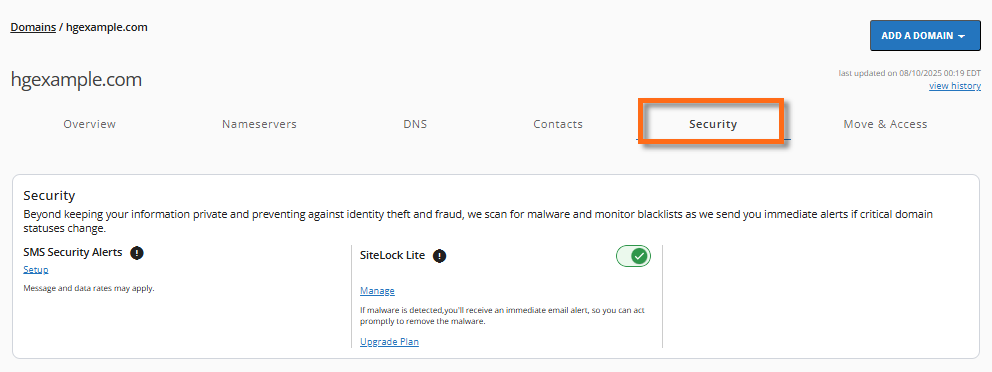
The Security menu in the Domains tab of the Customer Portal has been improved to include new security management features. Along with protecting your information and defending against identity theft and fraud, we scan for malware and watch blacklists, providing you with instant notification if there are substantial status changes to your domain.
- Manage the SMS Security Alerts ⤵
- Manage SiteLock ⤵
Manage the SMS Security Alerts
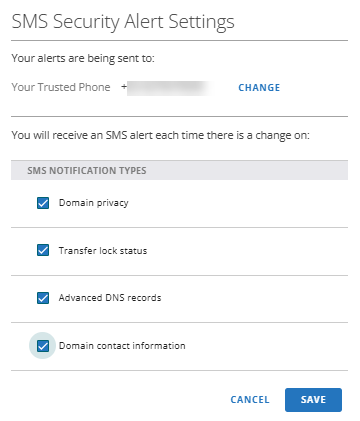
Real-time alerting keeps you aware of critical changes to your account or domain so you can take quick, corrective action. You can receive an SMS alert each time there is a change in the following:
- Domain Privacy status
- Transfer Lock status
- Advanced DNS records
- Domain contact information
Managing the Security Alerts Functionality
- Set up SMS Alerts ⤵
- Enable or Disable the SMS Security Alerts ⤵
- Change Phone Number ⤵
- Remove SMS Security Alerts ⤵
Set up SMS Alerts
To set up SMS alerts (first-time setup):
-
Log in to your Customer Portal.
-
Click the Domains in the left-side menu.

-
Click the Security tab.
-
In the pop-up, click CONTINUE.
-
Choose the services for which you would like to receive alerts, and then click SAVE.
Enable or Disable the SMS Security Alerts
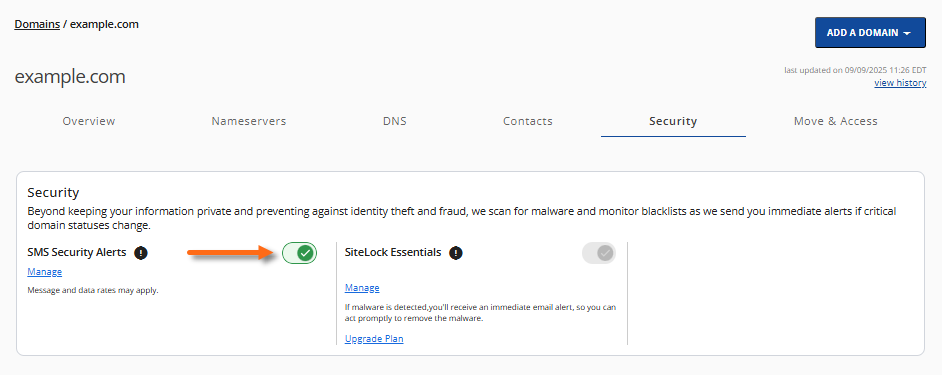
To enable or disable the domain's SMS alerts, use the toggle switch next to SMS Security Alerts.
Change Phone Number
To change your phone number and start receiving notifications on a different phone number:
-
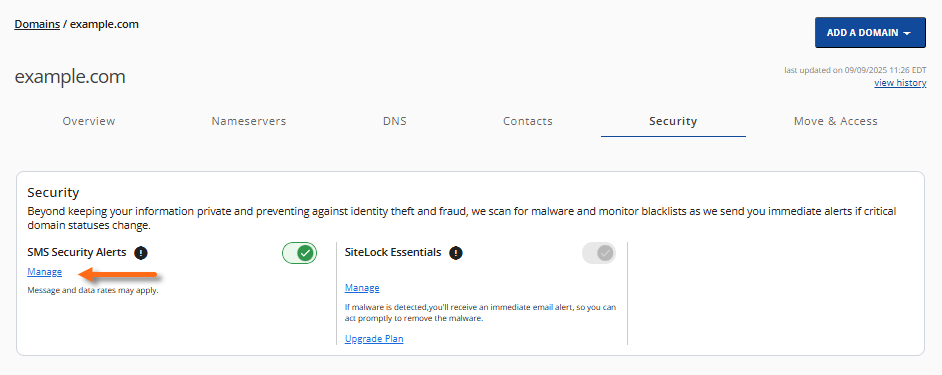
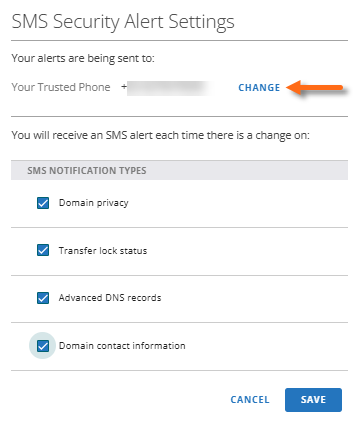
Click Manage under the SMS Security Alerts.
-
Click the CHANGE link next to your phone number.
-
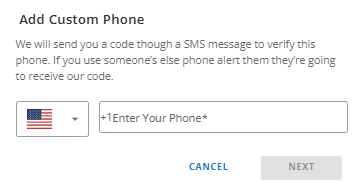
Enter the new phone number, and click NEXT.
-
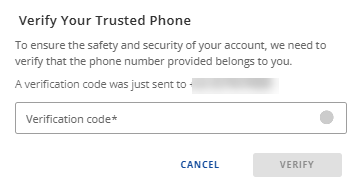
A verification code will be sent to your new phone number. Enter the verification code in the pop-up, then click VERIFY.
Remove Security Alerts
To remove security alerts for a specific service:
-
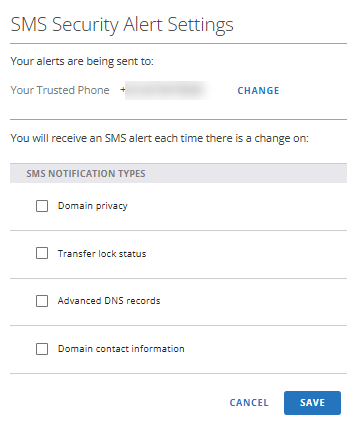
Click Manage under the SMS Security Alerts section.
-
Deselect the service for which you want to stop receiving notifications.
-
Click SAVE.
Manage SiteLock
The SiteLock section allows you to manage your SiteLock service.
To enable or disable SiteLock scan, use the toggle switch.
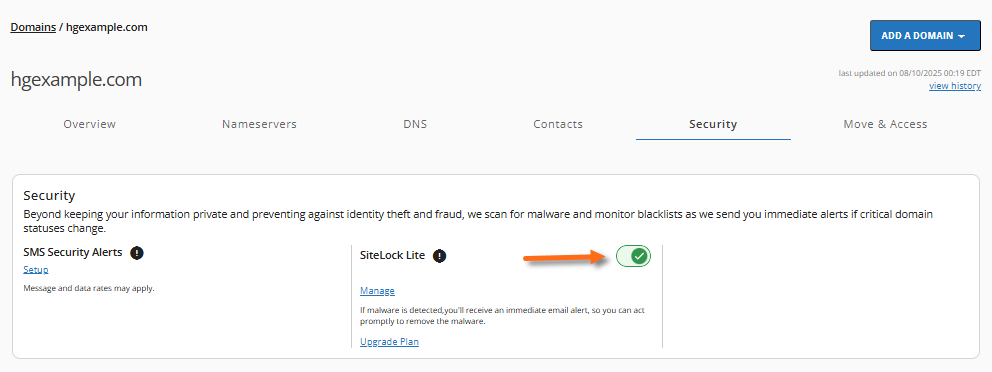
It is highly recommended that you always leave it ON.
To manage SiteLock, click the Manage link.
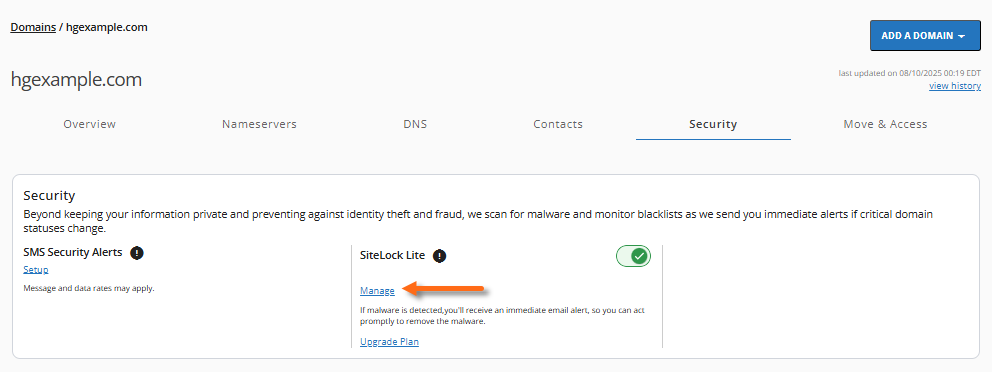 Please visit the SiteLock Overview & Resources article to learn more about navigating the SiteLock dashboard.
To upgrade your SiteLock plan,
Please visit the SiteLock Overview & Resources article to learn more about navigating the SiteLock dashboard.
To upgrade your SiteLock plan,
- Click the Upgrade Plan link.
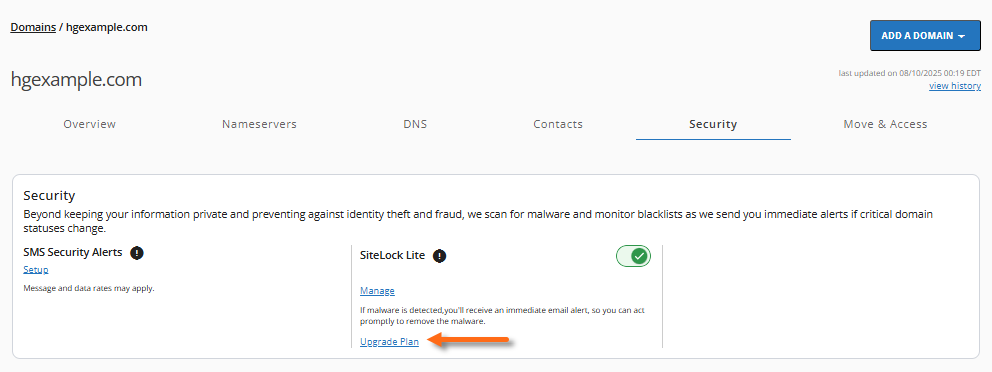
- In the pop-up, select your preferred (higher-tier) SiteLock plan, then click BUY NOW.
- Complete your payment transaction.