Enable Professional Email Settings for Third-party Email Clients
- Professional Email Overview
- Manage
- Order and Add a Seat
- Create an Email Account
- Setup MX & TXT for Professional Email
- Import Emails
- Setup on Third-Party Email
- Enable 3rd-Party Apps
- Configure IMAP/POP on Email Apps
Enabling Professional Email on third-party apps allows you to access your Professional Email service on other email clients or applications. Note: You can access your emails on other email clients by enabling the service on third-party apps. However, you won't be able to access crucial features available on your Professional Email's native platform or Webmail. If you're looking for a support article about setting up Professional Email on a specific 3rd-party email app, please visit the following articles.
- How to Configure HostGator’s Professional Email in Outlook
- How to Set up a Professional Email Account on Apple Mail/Mac Mail App
- How to Set up Professional Email on iPhone or iPad
To enable Professional Email for third-party email clients:
- Log in to your Customer Portal.
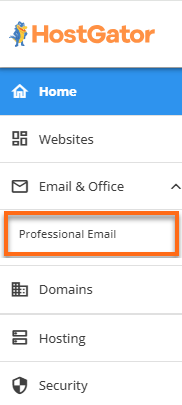
- Click the Email & Office tab on the left-hand menu and select Professional Email.
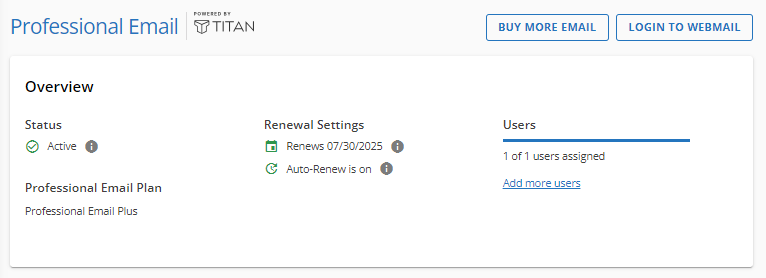
- On the Professional Email page, click the LOGIN TO WEBMAIL button on the top right.
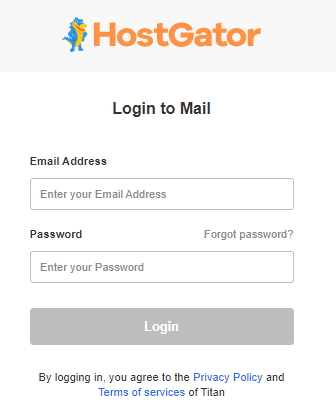
- Enter your email address and password on the login page.
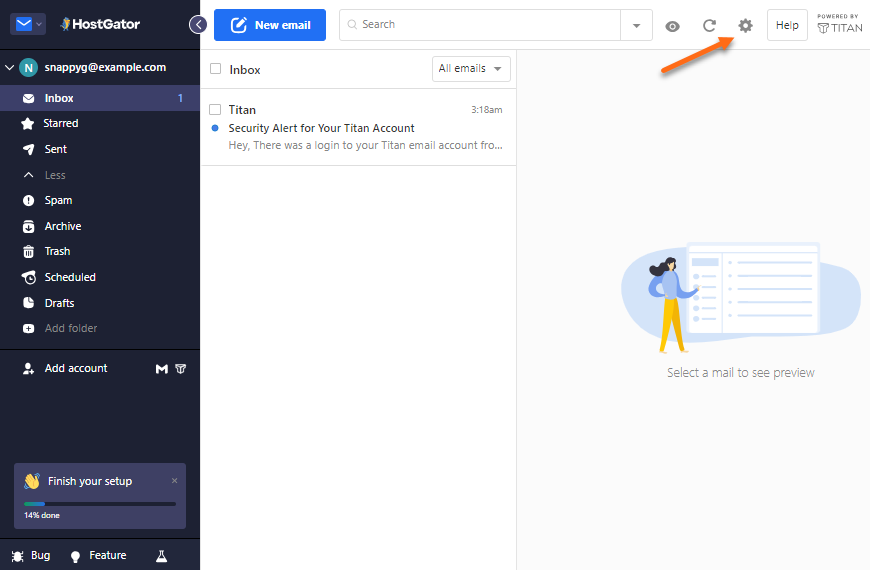
- You'll be routed to the Professional Email dashboard. Click the gear icon in the upper-right corner.
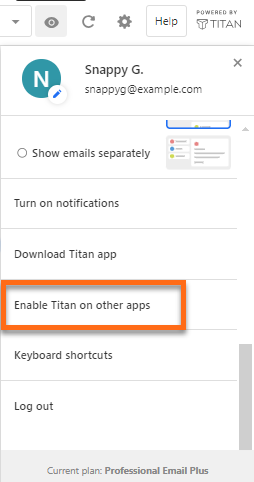
- Scroll down the list of options in the menu, then click Enable Titan on other apps.
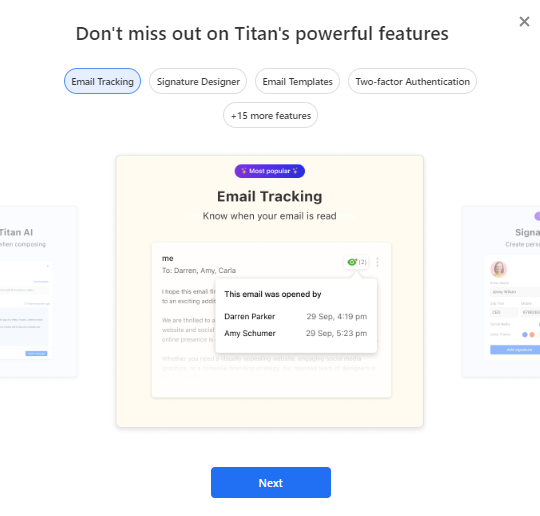
- A pop-up window will appear, giving you a tour of the available features. Click on Next until the last slide.
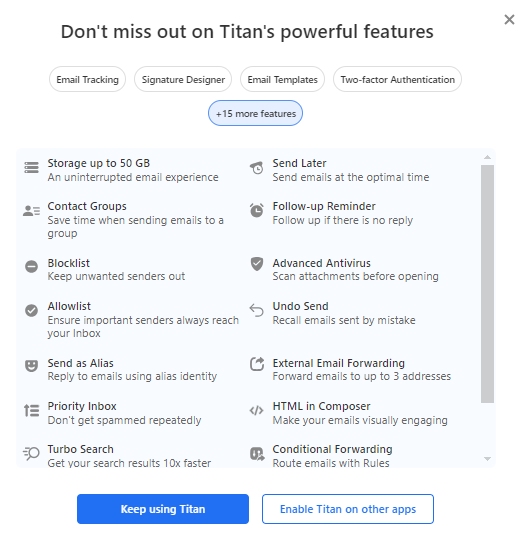
- After completing the feature tour, click Enable Titan on other apps to grant permission for third-party email clients to access your emails.
- A pop-up will notify you that the third-party email access is enabled. You can simply close this window or click the install buttons to download the app.
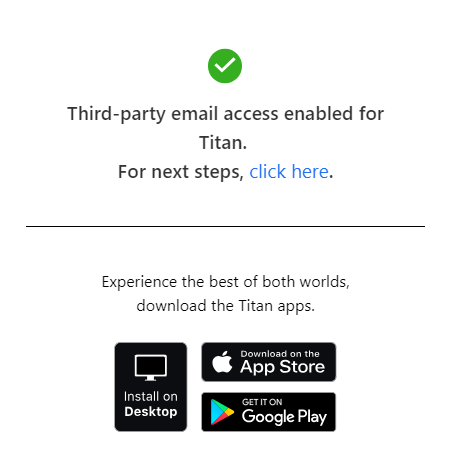 The 'click here ' link will route you to an external page for configuring third-party email applications. We do have a support article to guide you with the setup. Please visit the following article for reference.
- Professional Email - How to Configure IMAP/POP on Third-Party Apps
Related Articles
- Professional Email - How to Configure IMAP/POP on Third-Party Apps
- Professional Email - How to Set up and Create an Email Account
- Professional Email Product Overview
- Setup Professional Email MX and TXT records
Need assistance? Please contact HostGator's Support via phone or chat so we can assist you!!