How to Request Domain Ownership
- Domain Functions
- Register
- Transfer In
- Transfer Away
- Renew
- Domain Lock
- Domain Connections
- Domain Privacy + Protection
- Domain Expiration Protection
- Overview
- Nameservers
- DNS
- Contacts
- Security
- Move & Access
- Move Accounts
- Manage Users
- Request Ownership
- Change Ownership
- Request Auth Code
Keeping your account details current is essential for security and control—especially during business transitions or when transferring access. This guide explains how to request domain ownership by updating your primary contact , replacing your email address , and completing a Change of Registrant (CoR). Important: ICANN enforces a 60-day CoR lock if you change the email address, name, or organization name on your domain. This lock can’t be removed or bypassed from your Customer Portal. For more details, check our ICANN’s Change of Registrant Policy. This article will walk you through how to:
- How to Change the Primary Contact on Your Account ⤵
- How to Change Your Primary Email Address ⤵
- How to Change Domain Ownership ⤵
How to Change the Primary Contact on Your Account
The Primary Contact is the legal representative of the account holder. They have full authority to manage the account. If your business owns the account and you need to update the Primary Contact, the current Primary Contact should log in and make the change. If they’re no longer available, you’ll need to submit a Primary Contact Replacement (PCR) request ⤵.
What You’ll Need
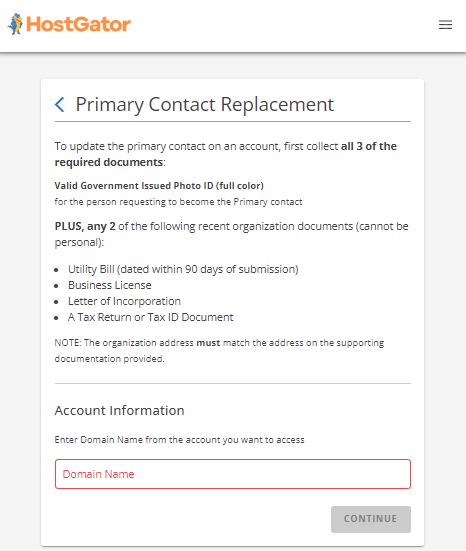
To update the Primary Contact, prepare the following requirements:
- Valid Government-Issued Photo ID (unexpired, full color)
- Two Organization Documents (must be recent, not personal). Accepted options include:
- Utility bill (dated within the last 90 days)
- Business License
- Letter of Incorporation
- Tax Return or Tax ID Document
The organization’s address must match the address on your documents. If you already have a User ID, you don’t need to create a new one. Multiple User IDs can be merged—see our Customer Portal - How to Merge User IDs article.
Submitting a Primary Contact Replacement (PCR) Request
-
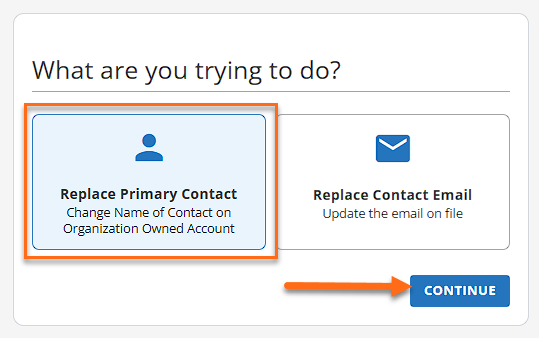
Go to the "What are you trying to do?" (Account recovery) page.
-
Select Replace Primary Contact and click CONTINUE.
-
Enter the domain name and click CONTINUE.
-
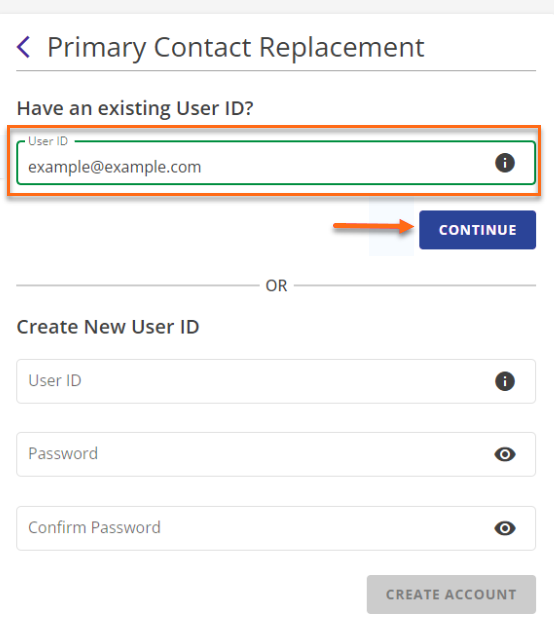
On the next page, you can use an existing User ID or create a new User ID.
-
To use an existing User ID , enter your User ID , then click CONTINUE.
-
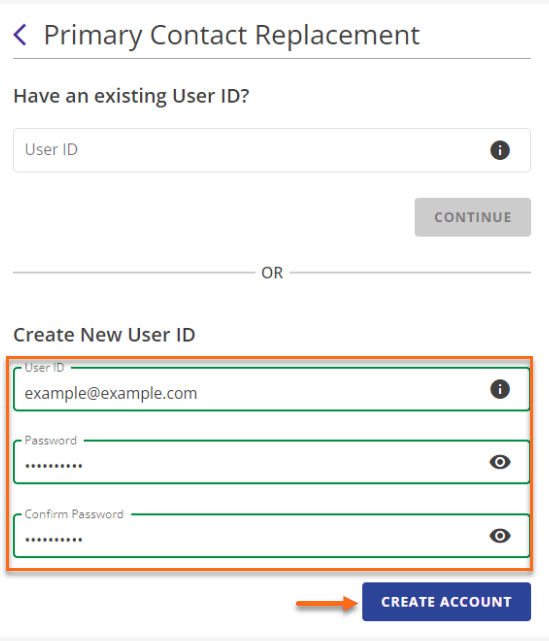
To create a new User ID :
-
In theCreate New User ID section, enter a new User ID and password.
-
Confirm your password and click the CREATE ACCOUNT button.
-
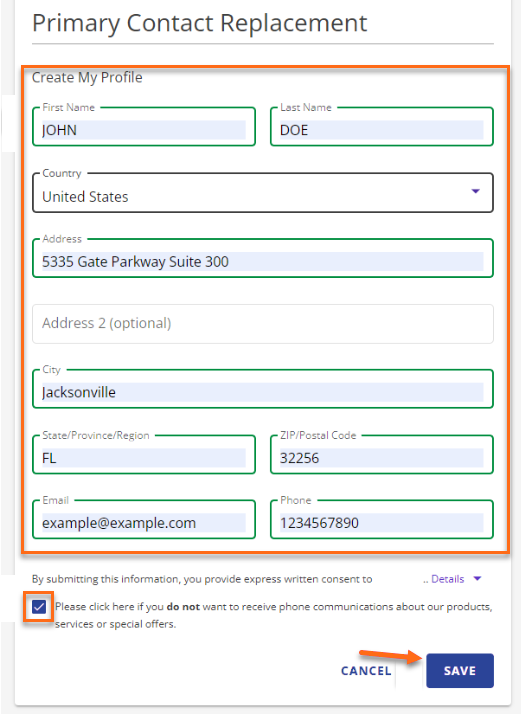
Enter the required information to create your profile.
-
If you prefer not to receive communications regarding our products, services, etc., please check the box in the notice section below the required fields.
-
Click SAVE.
-
Upload the required documents and click SUBMIT.
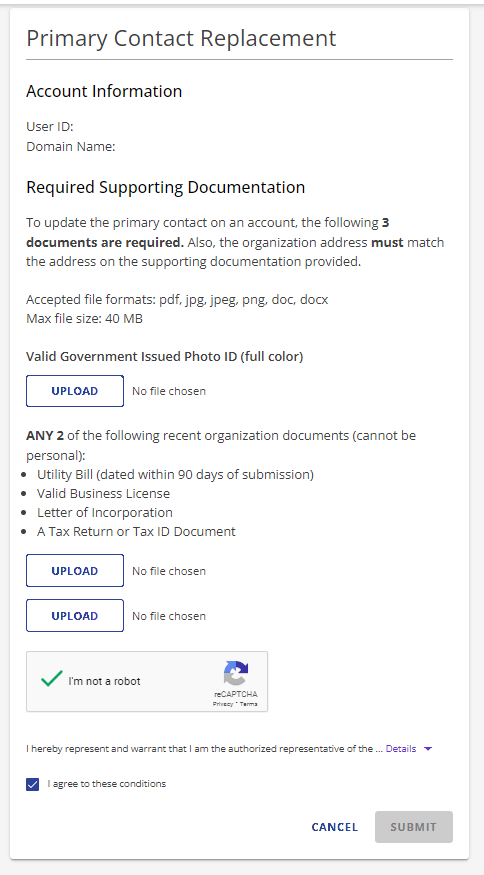 The address on the supporting document and the address on your photo ID must match.
 -
Tick the boxes for "I am not a robot " (CAPTCHA) and the “I agree to these conditions ” notices.
-
Click SUBMIT.
-
You’ll see a confirmation page. Please allow time for review, and we’ll contact you by email once it’s processed.
How to Change Your Primary Email Address
You can update your primary email address in the Domains tab of your Customer Portal under the Contacts menu. Please refer to the How to Update WHOIS Information for Your HostGator Domain article for the instructions.
When You Can’t Change It Yourself
If you’re unable to log in or access your old email, you’ll need to submit a Contact Email Replacement (CER) request. This applies if:
- Your email address is no longer valid.
- You cannot access the account using your login information.
- You cannot access your email address on file.
This process should only be used if you are currently a user listed on the account and need to update the email associated with your User ID.
What You’ll Need
To update the email address on your account, you will need the following documents:
- Valid Government-Issued Photo ID (unexpired, full color)
- Utility Bill dated within 90 days
If you don’t have a utility bill, you can use one of the following:
- Lease agreement
- Credit card or bank statement (dated within 90 days)
- Vehicle insurance or registration
- Student/Worker visas
- Voided check
The address on your documents must match the address on your photo ID.
Submitting a Contact Email Replacement Request
-
Go to the "What are you trying to do?" (Account Recovery) page.
-
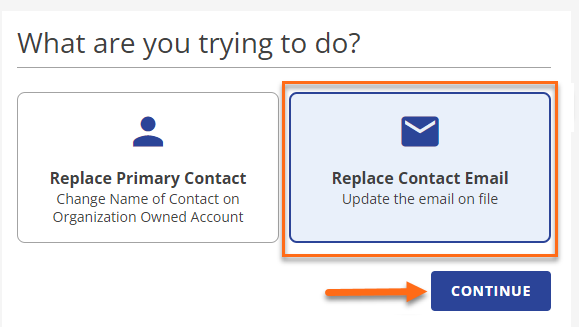
Select Replace Contact Email and click CONTINUE.
-
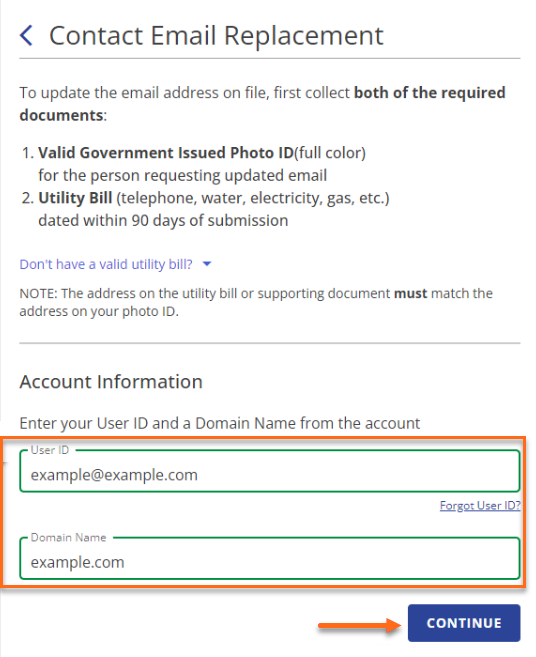
Enter your User ID and Domain Name , then click CONTINUE.
-
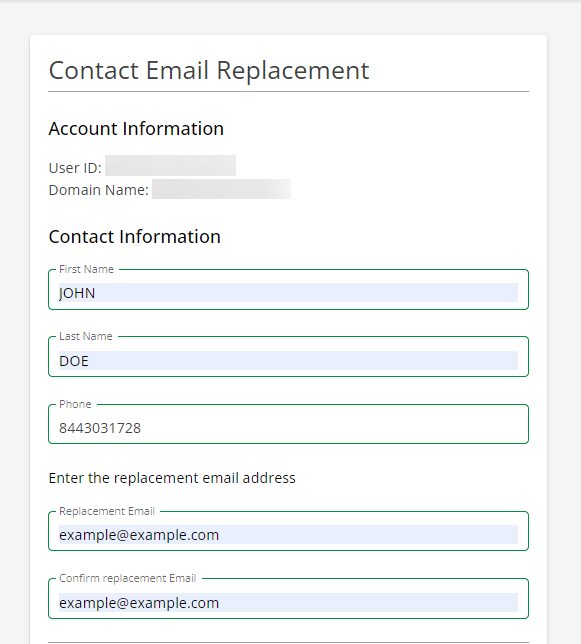
Enter your contact information (name, phone number, and replacement email).
-
Upload the required documents and click SUBMIT.
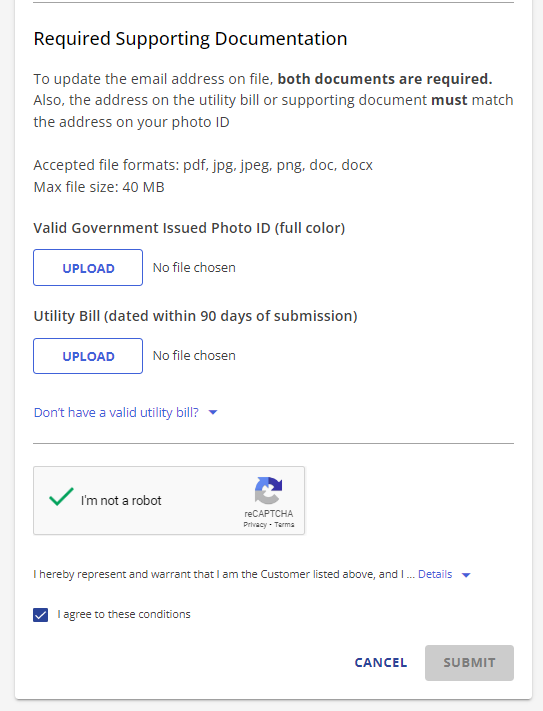 The address on the supporting document and the address on your photo ID must match.
 -
Tick the boxes for "I am not a robot " (CAPTCHA) and the “I agree to these conditions ” notices.
-
Click SUBMIT. We’ll review your request and notify you by email.
How to Change Domain Ownership
Changing domain ownership is called a Change of Registrant (CoR) , also known as the Registrant Name Change Agreement (RNCA). This moves domain ownership rights from one account to another. Important: CoR applies only to domain names. Hosting services, email accounts, and other products are not included. For instructions on how to change the owner of your domain, please check out the following article.
- How to Change Domain Ownership
ICANN Change of Registrar (CoR) Locks
ICANN applies a 60-day CoR Lock if you change the domain registrant’s:
- Name
- Email address
- Organization name
This lock helps protect your domain from hijacking or fraud. For more details, see our article on The Different Types of Domain Locks Explained.
Updating WHOIS Information
You can update your WHOIS information anytime in your Customer Portal. Please refer to the How to Update WHOIS Information for Your HostGator Domain article for the instructions. Still have questions or concerns? Please contact HostGator's Support via phone or chat so we can assist you!