Customer Portal - How to Use Renewal Center
Single Sign-On
Single Sign-On will allow you to review your invoices and easily navigate through your cPanel and billing area just by logging in at https://www.hostgator.com/my-account/login. More information about HostGator's new Single Sign-On option can be found in the following article.
- Single Sign-On
How to Access the Renewal Center
- Log in to your Customer Portal.
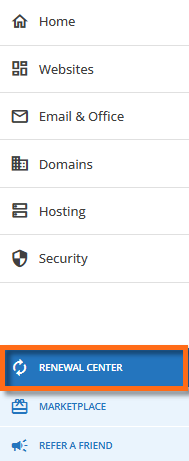
- Click Renewal Center from the left-side menu.
How to Use the Renewal Center
To process a renewal:
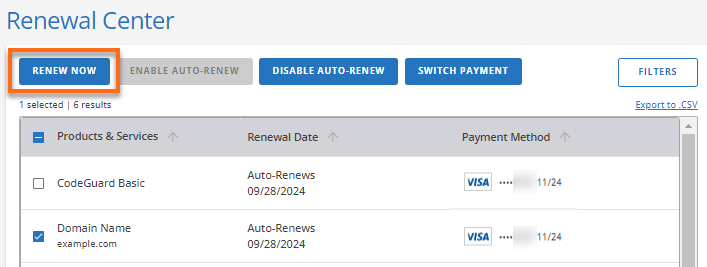
- On theRenewal Center page, check the box next to the hosting product(s)/service(s) you want to renew.
- Click the Renew Now button.
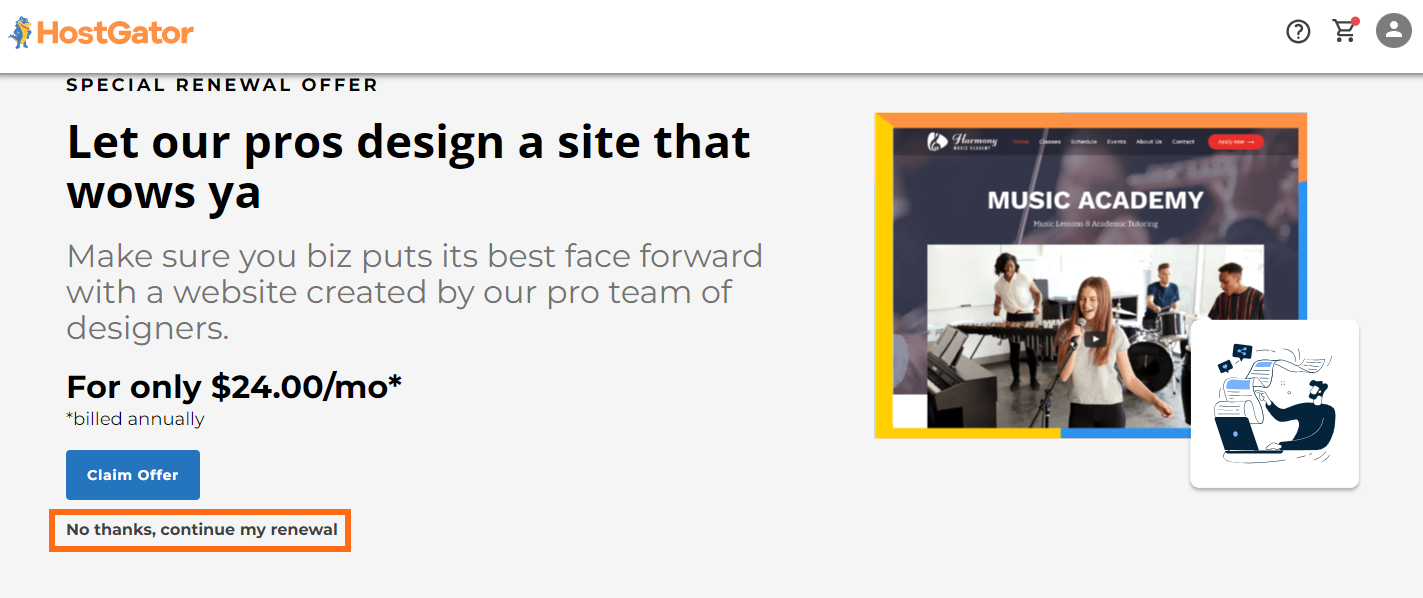
- There will be a SPECIAL RENEWAL OFFER product page. Click CLAIM OFFER if you are interested in adding the offered product. If not, just click No thanks, continue my renewal.
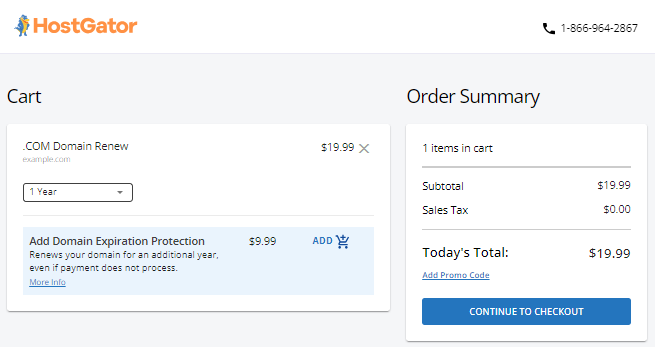
- You will be redirected to the Cart , where you can select your preferred length of term from the dropdown.

- Review your Order Summary details, then click Continue to Checkout to proceed.
- Add payment method details under Billing Information.
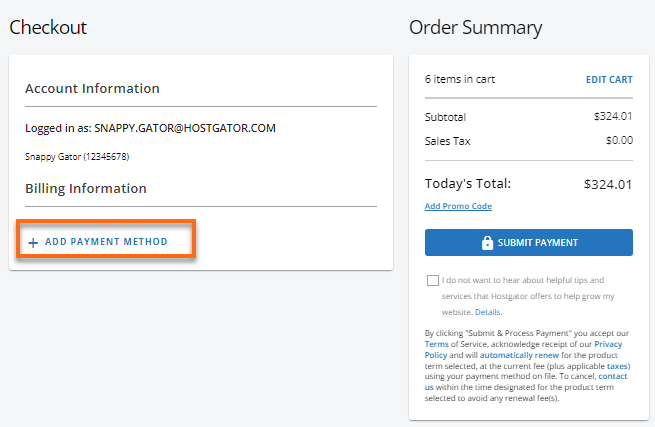
- Once done, click Submit Payment.
How to Manage Auto-Renewal Feature
To manage auto-renewal:
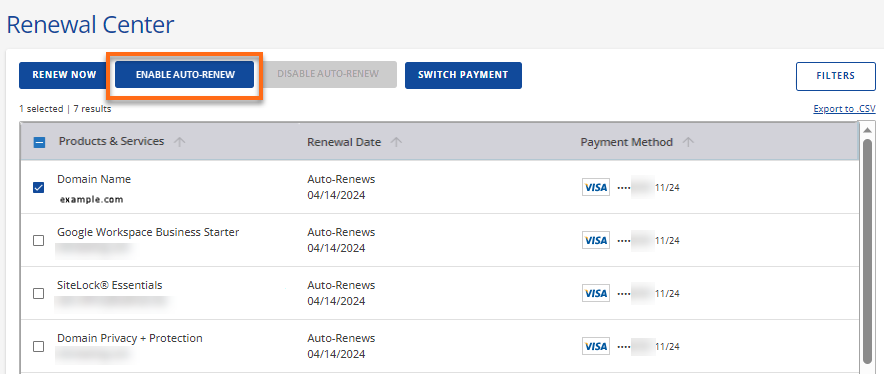
- On the Renewal Center page, check the box next to the hosting product(s)/service(s) you want to update the renewal settings.
- Select the preferred action.
- Click the Enable Auto-Renew button to ensure the product/service renews automatically.
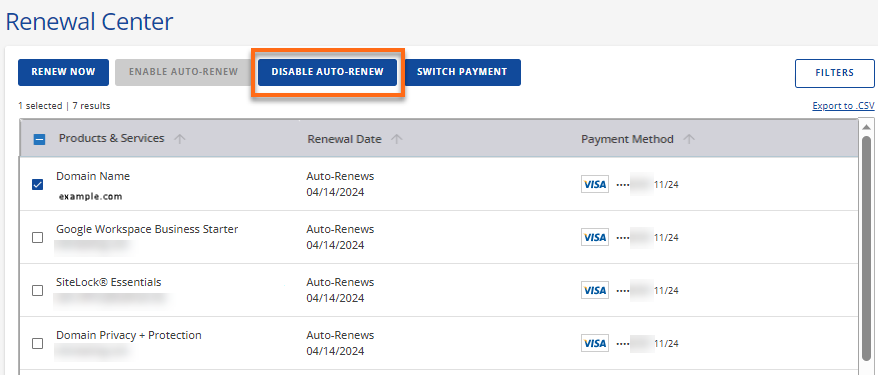
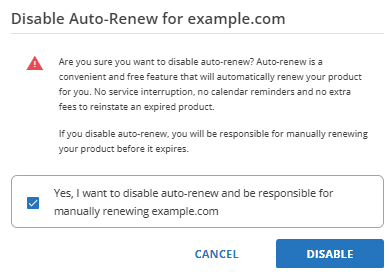
- Click the Disable Auto-Renew button to prevent the product/service from renewing automatically.
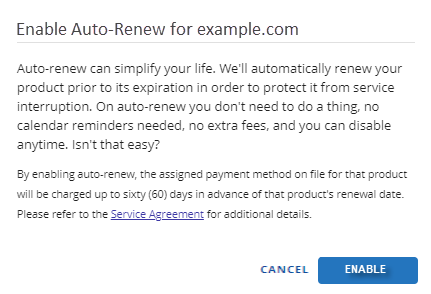
- A pop-up window will appear depending on the action you selected, prompting you to confirm the auto-renewal option.
- Click Enable to confirm activation of the auto-renewal feature.
- Check the box to confirm, then click Disable to finalize disabling the auto-renewal feature.
How to Switch Payment Method
If you need to designate a new payment method for a product or service, you can use the Switch Payment feature. To switch payment method:
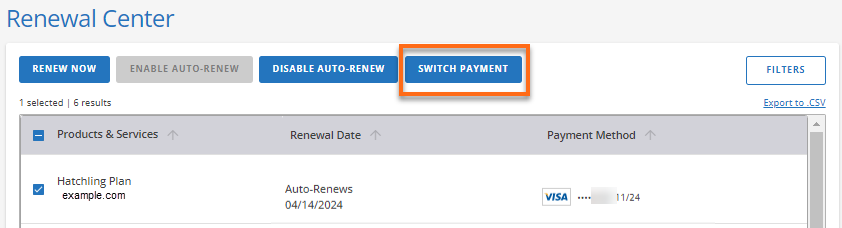
- On the Renewal Center page, check the box next to the hosting product(s)/service(s) you want to update your payment method.
- Click the Switch Payment button.
- In the pop-up, click Switch.
- If you prefer to use a new payment method, click the Manage payment methods link.
Note: We currently accept any credit or debit card with a MasterCard, Visa, Discover Network, American Express, Diners Club International, JCB logo, and PayPal.
You will be taken to thePayment Methods page, where you can click +Add Payment Method. and add your new payment details.
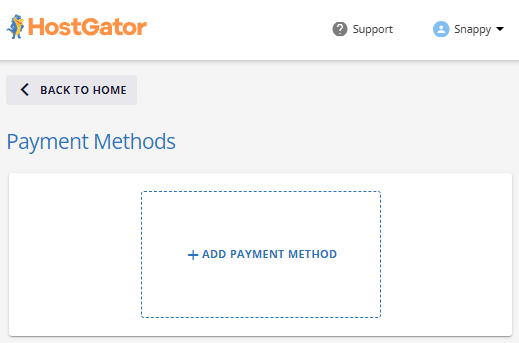 Once done, save your billing details, then click Switch to finalize the process.

Related Articles
- How Do I Cancel My Account?
- How to cancel a hosting plan
- How to cancel a domain name
- How to cancel an account addon
- I Already Canceled My Hosting. Why Am I Being Contacted to Pay?
- Why Do I Have to Cancel? Why Am I Still Being Invoiced?