Pointing My Domain to HostGator When Using DNS Elsewhere
While it is sometimes preferable to use DNS servers other than HostGator's, we recommend that you change your domain's name servers to those we provide so that our servers can manage your DNS for you automatically. Typically, you would use other name servers if you currently have many DNS records set up elsewhere and only wish to use HostGator for certain services. Otherwise, it is better to point the nameservers to HostGator and manage the DNS here.
Using non-HostGator DNS servers
If you do not use our DNS servers, you will need to manually update the individual DNS records on the remote DNS server as HostGator staff make changes for you. Also, any changes to your HostGator servers, such as adding subdomains or a change in IP address, will not be reflected in the remote DNS automatically as they would if you used our DNS. If you are uncomfortable doing this, we recommend using our nameservers instead. Click the links below to find out more:
- Using HostGator for web hosting while the DNS server is elsewhere ⤵
- Using HostGator for emails while the DNS server is elsewhere ⤵
- Where to obtain support ⤵
How to point your domain to HostGator for web hosting You will need to create (or edit) some A records at the control panel of your current DNS server to accomplish this. In most cases, you will need to create one entry for your domain without the www and another entry with the www , assuming you want your website to show up regardless of how visitors type your domain name in a browser. The method for changing A records varies, so you will want to reference the specific instructions for your DNS server. DNS record display Many DNS name servers will display DNS records in various fashions. Below are some examples of how the A records may appear. Example One:
| Name | TTL | Type | Address |
|---|---|---|---|
| @ | 14400 | A | 111.222.333.444 |
| www | 14400 | A | 111.222.333.444 |
| Example Two: | |||
| Name | TTL | Type | Address |
| --- | --- | --- | --- |
| example.com. | 14400 | A | 111.222.333.444 |
| www.example.com. | 14400 | A | 111.222.333.444 |
| Example Three: | |||
| Name | TTL | Type | Address |
| --- | --- | --- | --- |
| example.com. | 14400 | A | 111.222.333.444 |
| www.example.com. | 14400 | CNAME | example.com. |
| You may still find more slight variations. Don't panic, though. The rule of thumb is to create your entries to look like those already there. If the entry already exists, edit it instead of adding a new one. | |||
| You may need to consult the documentation of your DNS server to ensure how the records should be formatted. Contact the support of the company providing the DNS server if you are unsure how to proceed. | |||
| What to Change |
- IP address - In the examples above, you will want to replace the IP address (111.222.333.444) with HostGator Site IP Address.
This can be found in the General Information section of your cPanel (image shown below). You can also contact us via phone or chat to assist you in finding this information.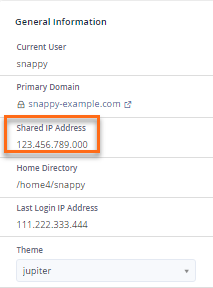
- Domain Name - You should replace example.com with your actual domain name.
Leave all other information the same (formatted according to the specifications of your DNS server).
How to point your domain to HostGator for email You will need to create (or edit) an A record and an MX record to point your domain to HostGator for email. The method for making changes to A records and MX records may vary, so you will want to reference the instructions for your DNS server. Many servers represent the A and MX records like in the example listed below:
| Name | TTL | Priority | Type | Address |
|---|---|---|---|---|
| example.com. | - | 0 | MX | mail.example.com. |
| mail.example.com. | 14400 | - | A | 111.222.333.444 |
| Note: Certain DNS servers will allow you to omit the period after the domain name. You may need to consult the documentation for your DNS server or contact your DNS server's support if you are unsure how they are supposed to be formatted. | ||||
| What to Change: |
- IP address - In the examples above, you will want to replace the IP address (111.222.333.444) with HostGator Site IP Address.
This can be found in the General Information section of your cPanel. You can also contact us via phone or chat to assist you in finding this information. - Domain name -You should replace example.com with your actual domain name.
- Subdomain - You do not need to use mail.example.com, as shown in the example above. You may use any subdomain you desire, which is helpful if mail.exampledomain.com is currently used for something else. You only need to make sure that this subdomain points to your HostGator's A record or Site IP that you created (or edited) earlier. For more information on how to change your DNS records at HostGator, please see the following articles:
- How to Change DNS Zones in cPanel
- How to Set Up Your MX (Mail Exchange) Record
Where to obtain support If you need your HostGator Site IP address, you may contact us via phone or chat to show you how to find this information within your cPanel. If you require assistance with a non-HostGator DNS server, we recommend contacting the company that provides your DNS server since we do not know how their servers are configured.
Related Articles
- Change Your Name Servers with Network Solutions
- DNS Troubleshooting & Advanced Topics
- DNS Troubleshooting Guide
- How to Change GoDaddy Name Servers
- How to Change Name Servers with Hover
- Updating Name Servers at FastDomain