How to Import a MSSQL Database - Windows Shared
This process cannot be done via the MSSQL client. Instead, it must be completed inside of the control panel using these steps:
- Create a Blank MSSQL database⤵
- Restore the Blank Database With the Database Backup File⤵
Create a Blank MSSQL Database
To create a blank database on a Windows Shared Server:
- Log in to your Plesk control panel.
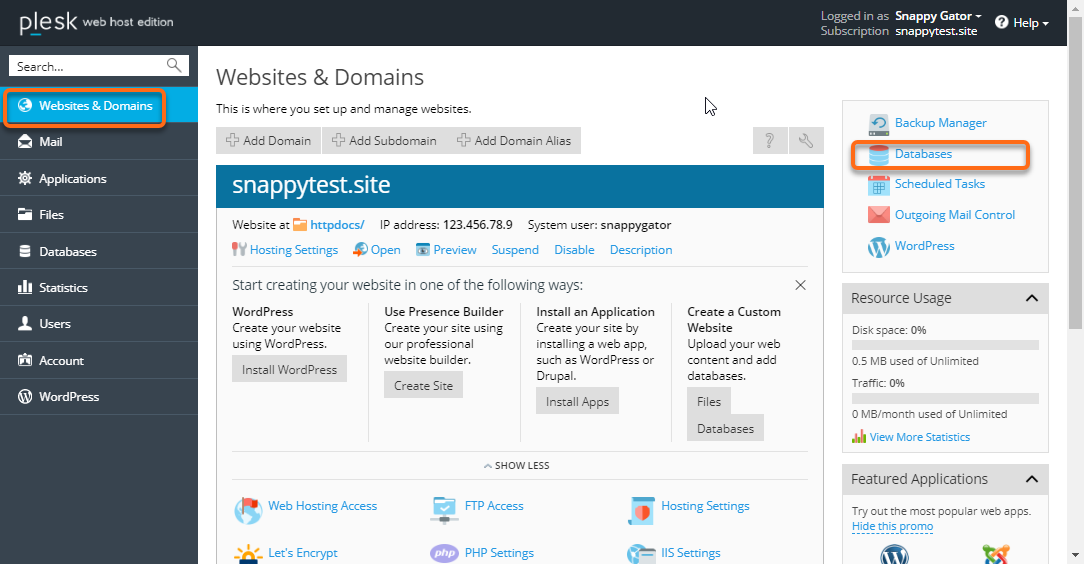
- Click Websites & Domains if it is not already selected, then click Databases.
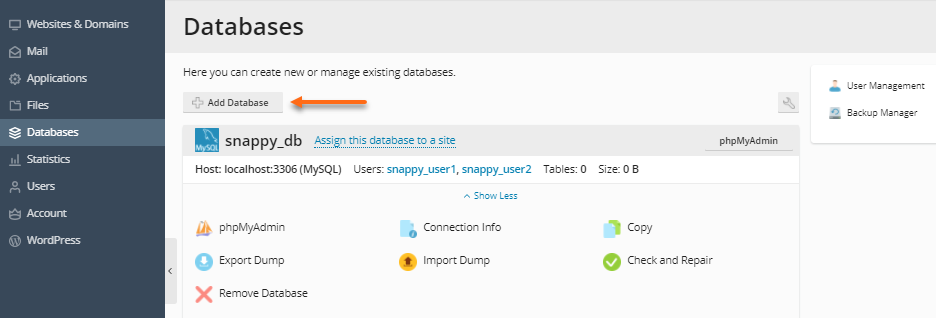
- Click Add New Database.
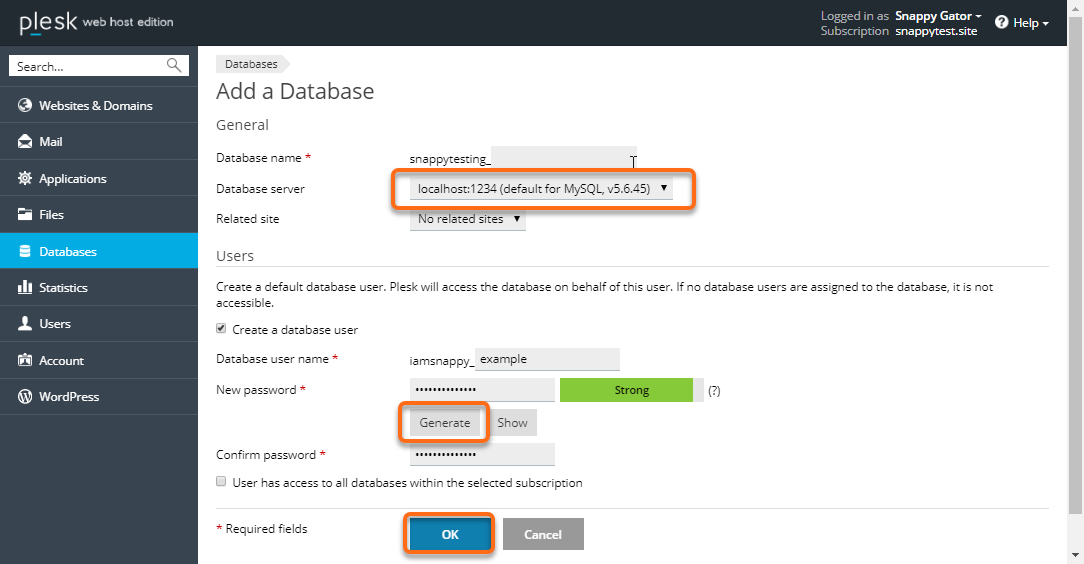
- Enter a name for the database and database user. Be sure to select Microsoft SQL Server as the Type. Click Generate to create a password for the database user. Finally, click OK.
Restore the Blank Database With the Database Backup File
To restore a blank database with a database backup file:
- Log in to your control panel.
- Click Websites & Domains if it is not already selected, then click on Databases.
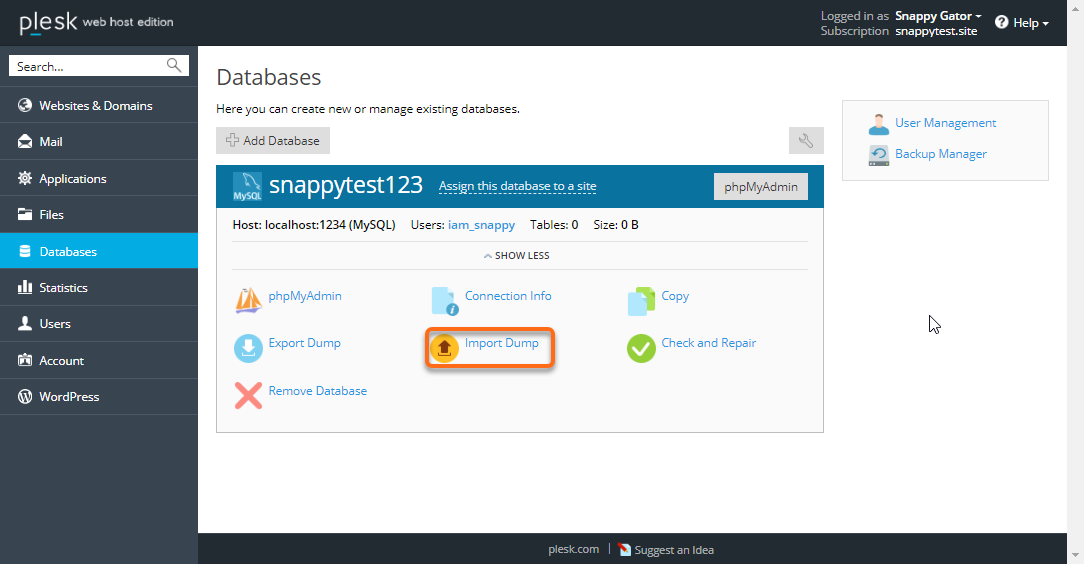
- Select Import Dump.
- Select Upload , then clickChoose File to choose the file you want to upload.
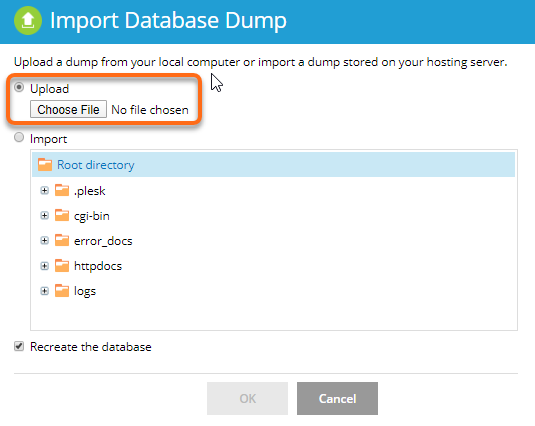
- Select the database you wish to import to, then click Browse to select the file. Next, click OK to continue.
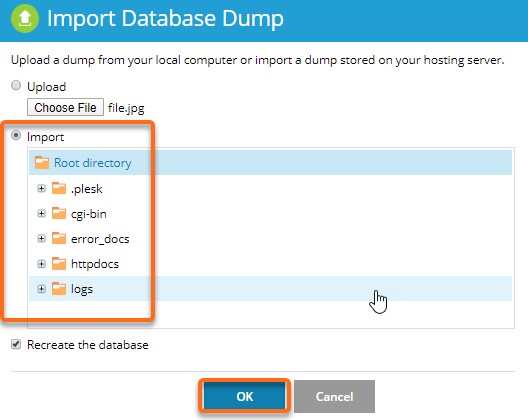
- Once done, you will see the Confirmation messages such as below:


Additional Resources:
- How to Back Up a Database - Plesk
- How To Create Databases - Plesk
- How to Use the Backup Manager - Plesk
- How to Create a Server Backup in Plesk
Please contact us via phone or chat if you have any questions or require assistance.