Website Builder - Password Protection
As we upgrade our Customer Portal to an optimized and easy-to-use design, you may find some hosting products and/or services no longer available. Due to this update, The HostGator Website Builder is no longer offered by HostGator for new signups. If you currently have the service, there will be no change to your product or service.
HostGator Website Builder's Password Protection feature will allow you to set up a protected page so that only people with the password will be able to view the page.

How to Add Password Protection
To add a password to a page:
- Log in to your Customer Portal.
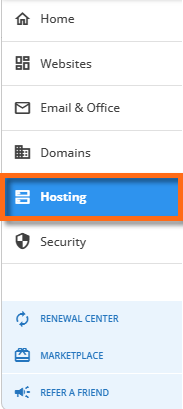
- Click the Hosting tab on the left-hand menu.
- Click on SITEBUILDER LOGIN. If you have multiple domains on your account, select the domain from the dropdown menu.
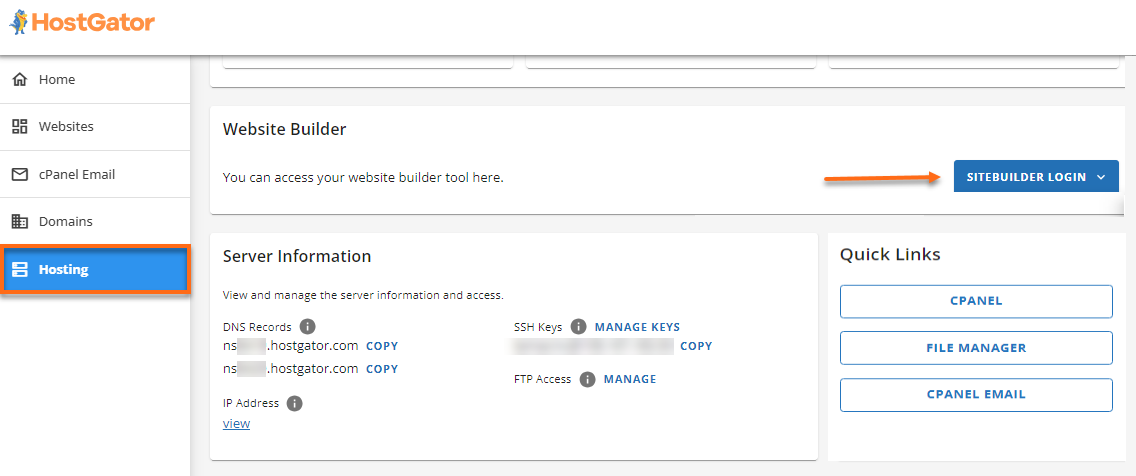
- The Website Builder will open in a new tab.

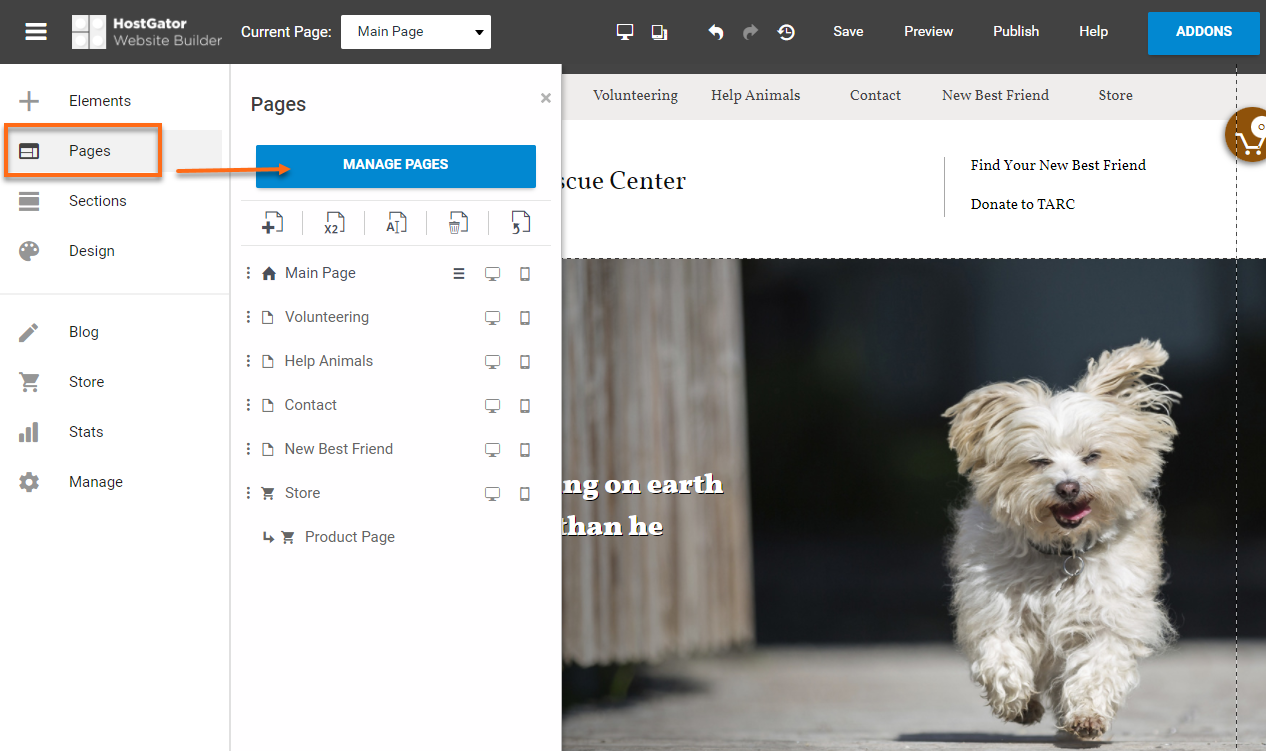
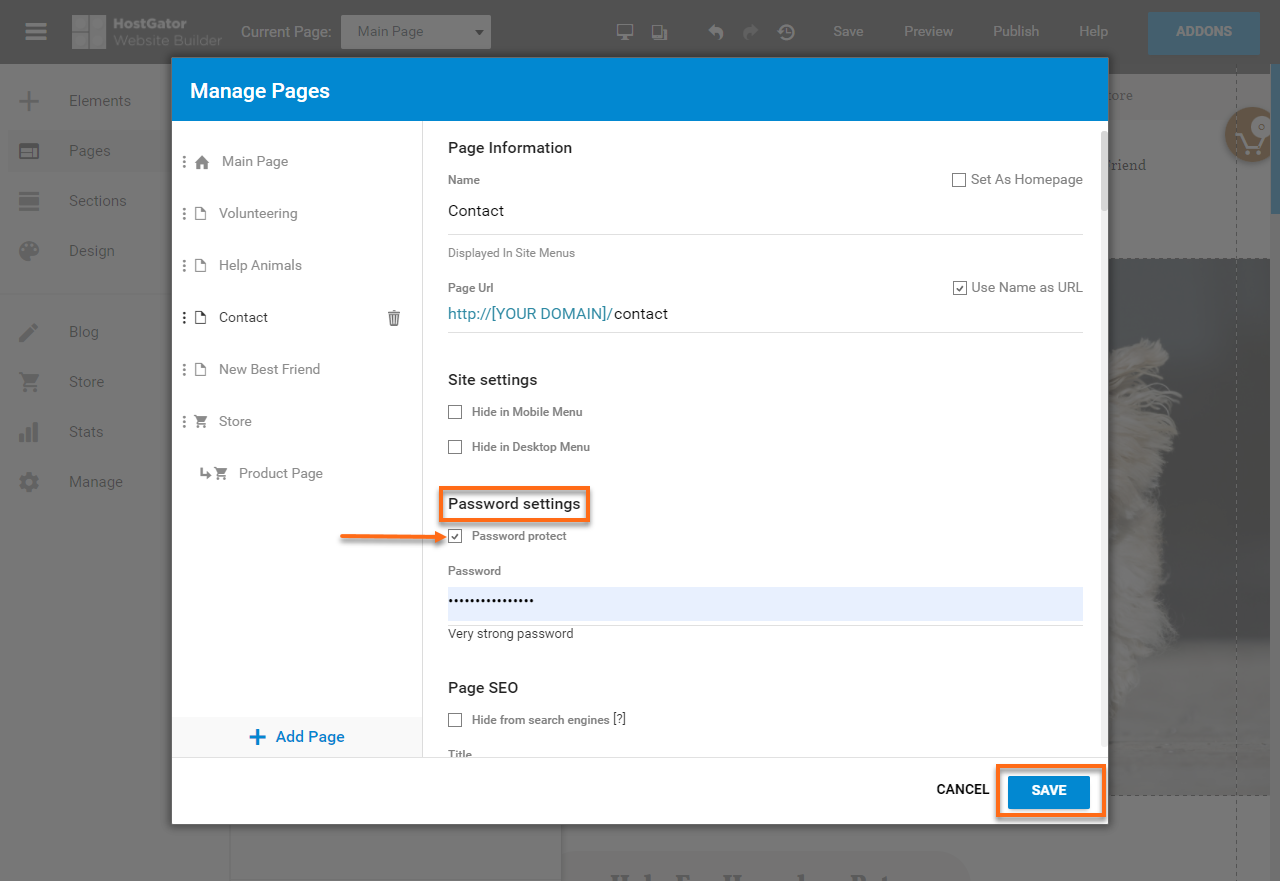
- Navigate to the Pages menu, then click Manage Pages.
 Alternatively, you can click the menu and select Settings.
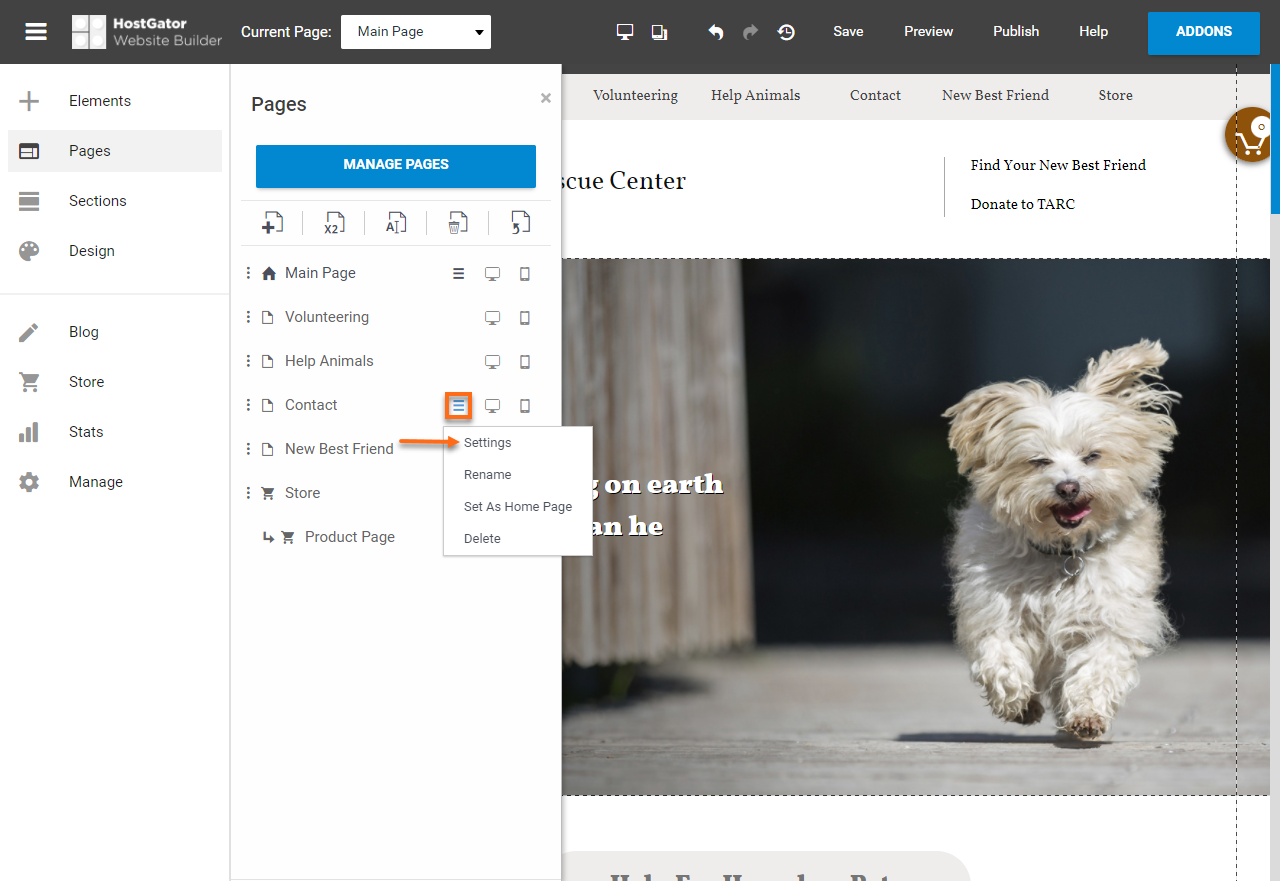
- Within the Password settings section, select the checkbox next to Password protect. Enter the desired password and then hit Save.
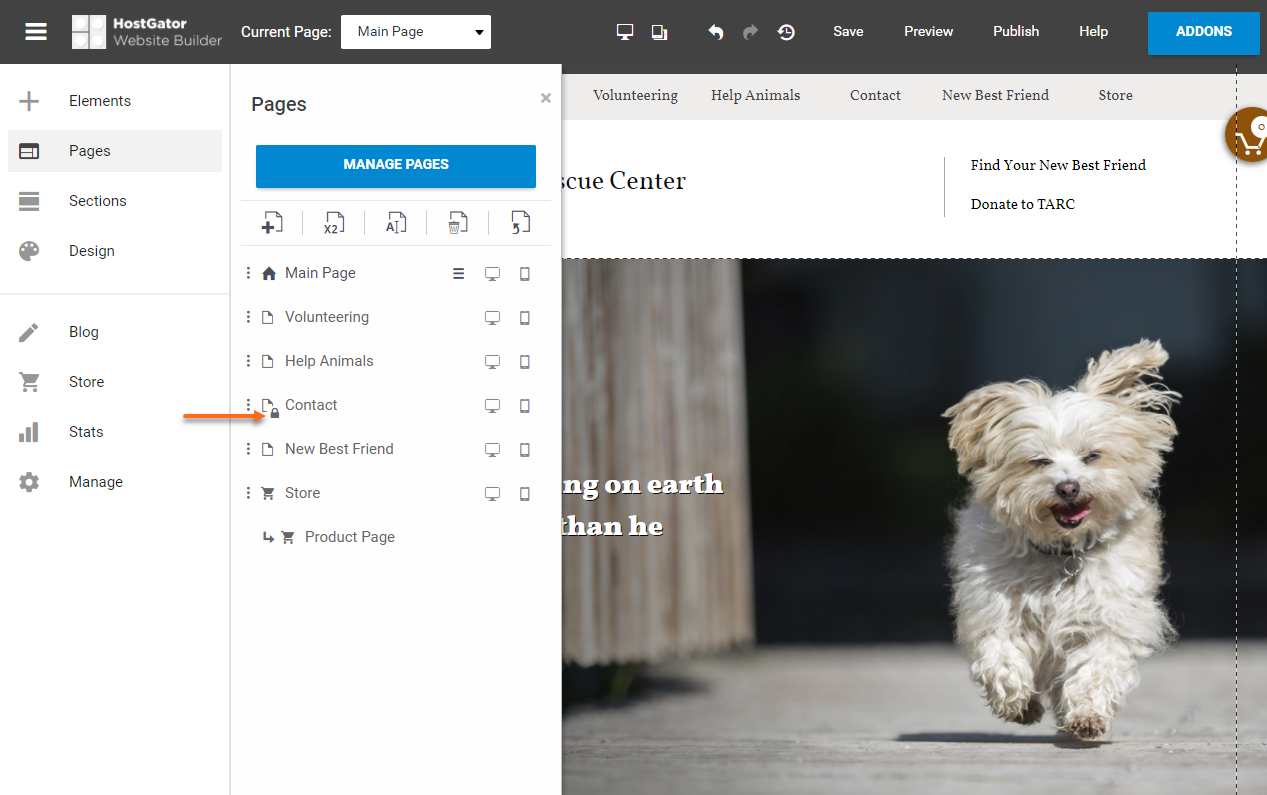
- Once the password has been added, a padlock will be added next to the page name.
Related Articles
- HostGator Website Builder - This article will cover the differences between the HostGator Website Builder plans and what each special feature includes.
- HostGator Website Builder Tutorials - This article provides a walk-through and video tutorials to help you manage your content within the HostGator Website Builder.