How to Create/Delete an Email Forwarder in cPanel
- cPanel Forwarding
- Plesk Forwarding
- Plesk Aliases
Forwarders allow you to automatically send a copy of an incoming email from one email address to another. Only Dedicated hosting can forward outgoing emails so that a copy of all emails sent from the server is automatically sent to a designated email address. This capability is not available to Shared hosting. Click the links below for the instructions.
- How to create an email account forwarder ⤵
- How to forward an email to multiple accounts ⤵
- How to create an email domain forwarder ⤵
- How to delete a forwarder ⤵
How to create an email account forwarder
To create an email forwarder:
- Log in to cPanel.
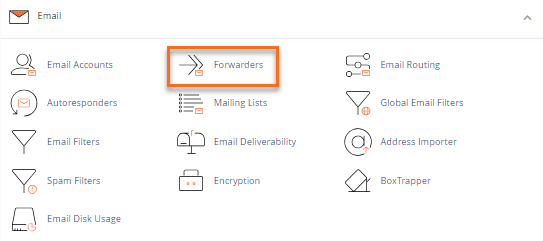
- Look for the Email section, then click Forwarders.
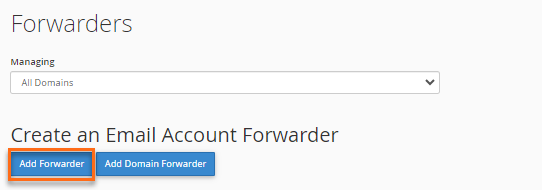
- On the next page, click Add Forwarder.
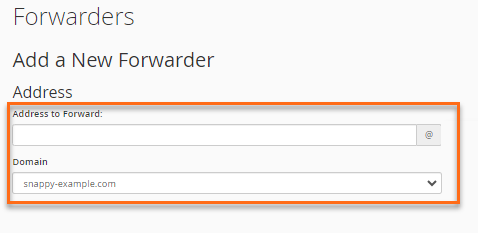
- Enter the email username that you wish to forward. Then, select your email account's domain name from the Domain dropdown.
- Set up a Destination. You can set your preferred email forwarding destination with any of the options below:
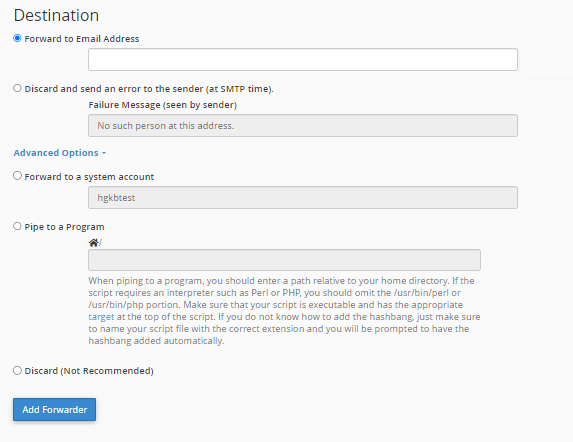
- Forward to email address — Enter the email account to which you wish to forward your emails.
- Discard and send an error to sender (at SMTP time) — Notifies the sender that the email was not delivered. This allows resending the message or checking if the recipient's email address was misspelled.
- Advanced Options
- Forward to a system account
- Pipe to a program
- Discard (Not Recommended)
- Once the destination is set up, click Add Forwarder.
Important Notes :
- Please note that a copy of the forwarded email will remain on the server. Eventually, the email box will reach its full capacity and stop forwarding messages. To avoid this issue, you can create a forwarder using a receiving email address at your domain that does not currently exist, so no copy of the message will be saved before it is forwarded off of the server.
- If spam is forwarded from your HostGator account to another email account, your HostGator account may be blacklisted. Therefore, it is recommended that you limit the number of forwarders created in your account.
How to forward an email to multiple accounts
To create additional forwarders so that emails can be copied and delivered to multiple destinations, repeat Steps 4-7, choosing the same email address as the recipient. Example: