如何将文件或文件夹与 Softaculous 安装关联
Softaculous 允许您选择额外的文件或文件夹,并将它们与您的脚本安装关联。此列表将用于备份文件或文件夹,并支持克隆功能。
此功能仅在安装位于您域名的文档根目录时可用。
-
登录 cPanel。有两种方式访问您的 cPanel。
- 选项 1 :直接访问您的 cPanel。
- 选项 2 :通过您的客户门户访问 cPanel。
-
登录您的客户门户。
-
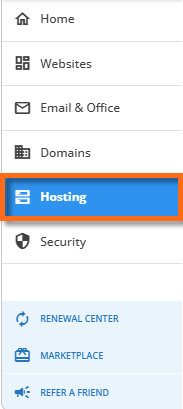
点击左侧菜单中的 Hosting(托管)。
-
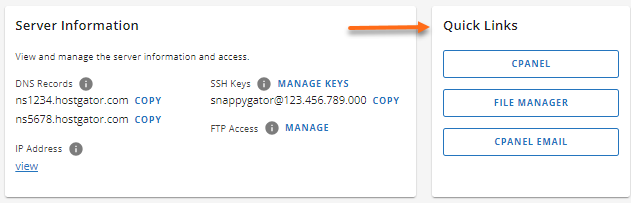
如果您的账户中只有 单个托管套餐,请向下滚动至 Quick Links(快捷链接) 部分。
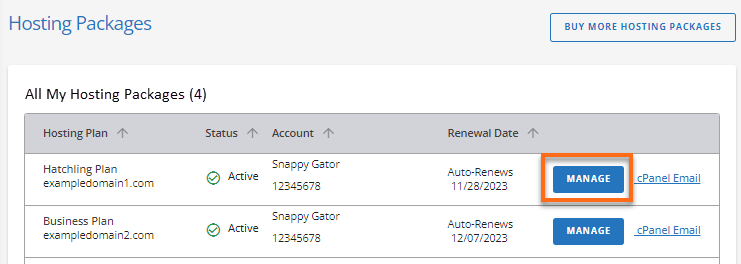
如果您的账户中有 多个托管套餐,请在托管套餐页面找到您想管理的套餐,然后点击其 Manage(管理) 按钮。
-
在 Quick Links(快捷链接) 部分,点击 cPanel 按钮。
-
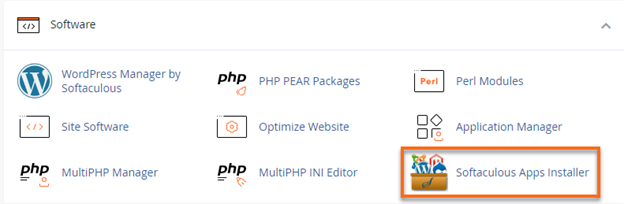
在 cPanel 中,进入 Software(软件) 部分,点击 Softaculous Apps Installer(Softaculous 应用安装器)。
-
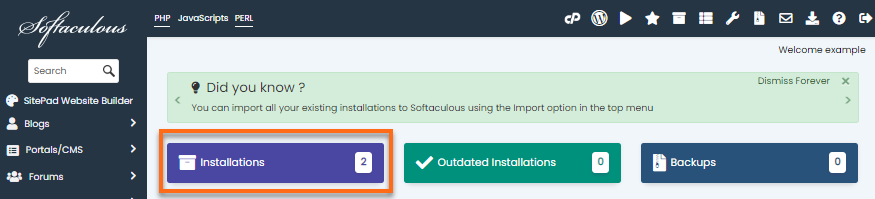
点击仪表盘上的 Installation(安装) 框。
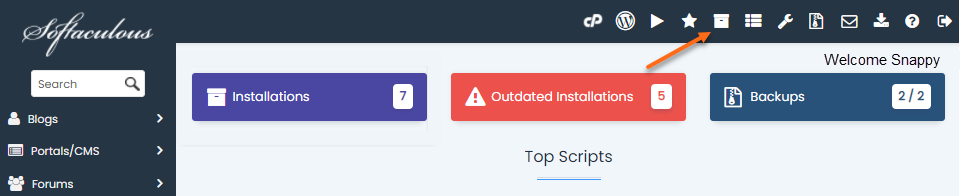
或者,您也可以点击右上角的 All Installations(所有安装) 图标。
-
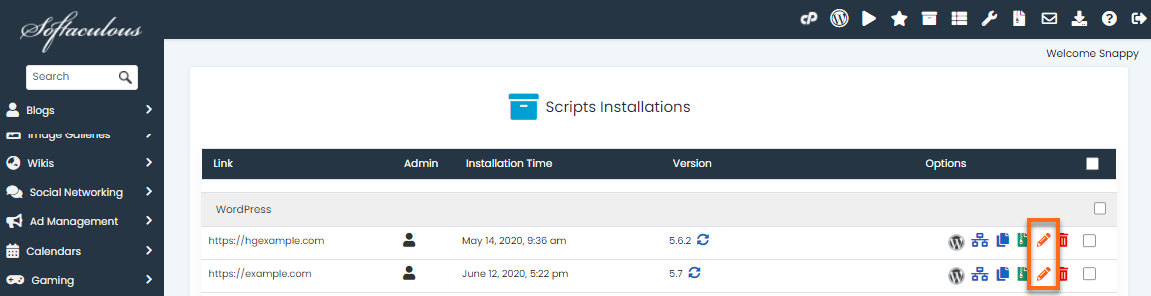
在 Scripts Installations(脚本安装列表) 页面,找到您的网站,然后点击 Edit Details(编辑详情) 图标。
-
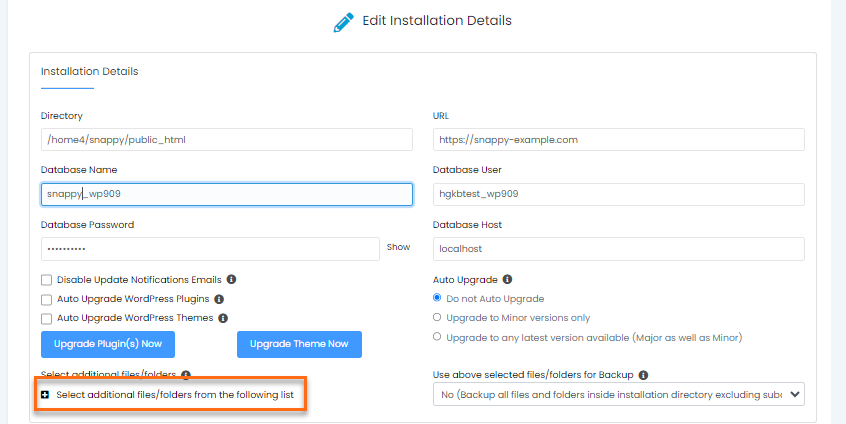
系统会跳转到 Edit Installations Details(编辑安装详情) 页面,在这里您可以自定义安装信息。向下滚动并找到 Select additional files/folders from the following list(从以下列表中选择额外的文件/文件夹)。
-
点击 Select additional files/folders from the following list(从以下列表中选择额外的文件/文件夹) 旁的 + 图标 以展开列表。
-
从列表中选择您想与安装关联的文件和/或文件夹。
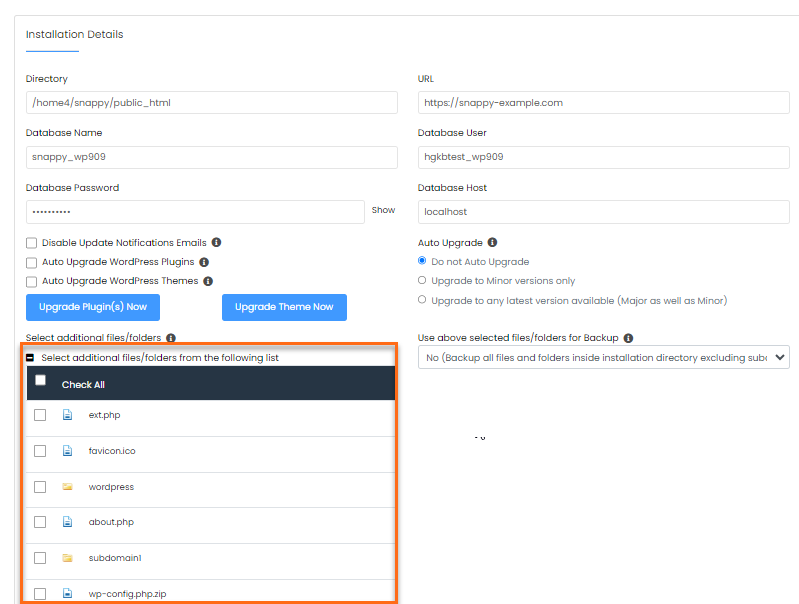
-
完成后,向下滚动并点击 Save Installation Details(保存安装详情) 按钮。
需要额外帮助吗? HostGator 支持团队随时为您服务。请通过电话或聊天联系我们,我们将为您提供帮助!